Discover how Clip Studio Paint can transform your digital art workflow with powerful drawing tools, customizable brushes, 3D references, vector layers, perspective tools, coloring features, and animation capabilities. Whether you’re a beginner, illustrator, comic artist, or professional creator, Clip Studio Paint helps streamline the creative process and turn ideas into polished digital artwork more efficiently.
Table of Contents
- Introduction: Why Your Digital Art Workflow Matters
- 1. Building a Faster Start From the First Sketch
- 2. Making Line Art More Flexible With Vector Layers
- 3. Organizing Complex Artwork With Layers
- 4. Turning References Into Useful Creative Tools
- 5. Speeding Up Coloring and Rendering
- 6. Custom Brushes Can Help Develop a Personal Style
- 7. Using Assets Without Starting Everything From Scratch
- 8. Perspective Tools for More Convincing Environments
- 9. Making Comics and Manga More Efficient
- 10. Webtoon Creation and Long-Form Storytelling
- 11. Animation Without Constantly Changing Software
- 12. Exporting Work for Different Creative Purposes
- 13. Clip Studio Paint PRO vs EX for Different Workflows
- 14. Working Across Multiple Devices
- 15. Creating a Personalized Workspace
- 16. Creating a Repeatable Professional Workflow
- 17. Current Clip Studio Paint Pricing and Plans
- 18. Who Can Benefit Most From Clip Studio Paint?
- 19. Practical Tips for Transforming Your Workflow
- 20. Conclusion: Turning Tools Into Creative Momentum
- FAQs
Introduction: Why Your Digital Art Workflow Matters
Digital art is not simply about having a good drawing tablet, choosing an attractive brush, or learning how to sketch a convincing face. The real difference often comes from how smoothly you can move from an idea to a finished piece. When your software constantly interrupts that process with complicated menus, repetitive tasks, limited brushes, or awkward layer management, even a great idea can start feeling like hard work. That is where Clip Studio Paint becomes especially interesting. Designed for illustration, comics, manga, webtoons, concept art, and animation, the application brings a surprisingly broad collection of creative tools into one environment. Its current Ver. 5.0 release, launched in March 2026, adds improvements such as Smart Shape, faster rendering and filling, enhanced watercolor behavior, and expanded 3D features. The result is an application that can function less like a basic digital canvas and more like a complete creative workshop. Instead of constantly switching between different programs for sketching, line work, coloring, perspective references, comics, and animation, artists can keep much of the process together. But the real question is not whether Clip Studio Paint has a huge number of features. The better question is: can those features actually make your personal workflow faster, cleaner, and more enjoyable? For many artists, the answer depends on how intelligently they organize and use the software.
1. Building a Faster Start From the First Sketch
A strong digital workflow begins before the first polished line is drawn. It starts with getting an idea onto the canvas quickly, because hesitation can kill momentum. Clip Studio Paint supports this stage with customizable brushes, natural drawing tools, layers, rulers, vector capabilities, and other tools designed around illustration. The goal is not simply to provide hundreds of buttons; it is to give artists multiple ways to approach the same creative problem. Suppose you have a rough character idea in your head. You can begin with a loose sketch, establish the pose, refine the silhouette, create a separate line-art layer, and then move toward color without rebuilding the entire document from scratch. That kind of separation is important because experimentation becomes safer. You can change one part without destroying another. The official feature overview also highlights tools for character art, concept art, comics, animation, design, 3D, rulers, layers, transformation, correction, and export. When these tools become familiar, your workflow starts feeling less like a sequence of technical chores and more like a continuous conversation between your idea and your canvas.
Smart Shape and Improved Drawing Performance
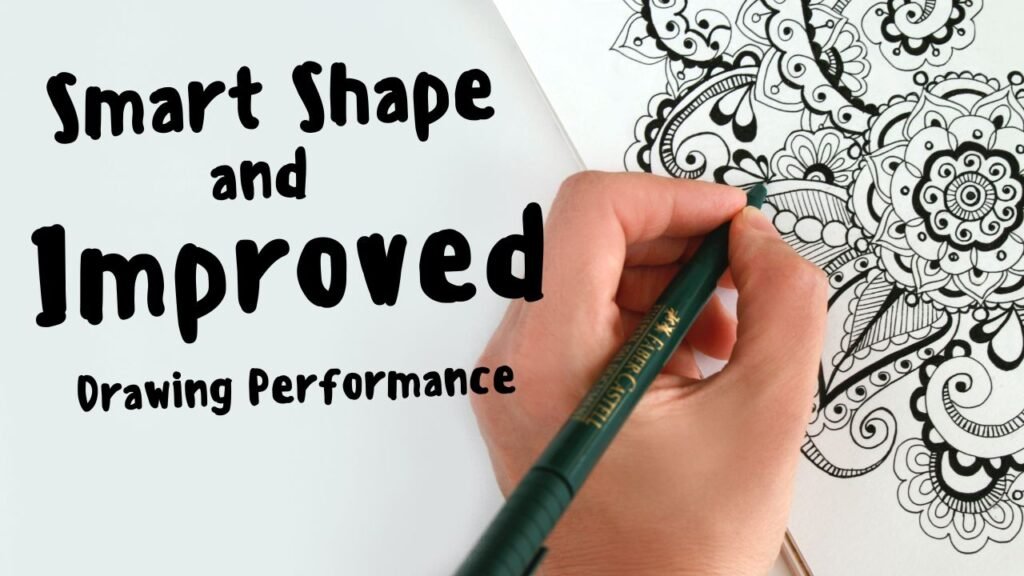
The arrival of Clip Studio Paint Ver. 5.0 makes the drawing experience even more workflow-focused. Smart Shape is designed to let artists create clean lines, curves, and shapes while continuing to work with their preferred brushes instead of constantly changing tools. The same release also introduced performance improvements for large brushes, watercolor rendering, filling, and stroke previews intended to reduce the feeling of lag during drawing. These improvements may sound technical, but their creative impact can be significant. Imagine trying to draw a long flowing line and feeling the software hesitate after every movement; your hand begins compensating for the delay, and the drawing becomes less natural. A responsive canvas removes some of that friction. Likewise, cleaner shape creation can help with backgrounds, props, architecture, graphic elements, and concept sketches without forcing you to leave your normal brush workflow. The important point is that speed does not necessarily mean rushing. A better workflow gives you more time to think about composition, expression, lighting, storytelling, and visual style because fewer minutes are spent fighting the interface.
2. Making Line Art More Flexible With Vector Layers
Line art can be one of the most time-consuming parts of digital illustration. You may create a beautiful line only to discover that it needs to be thicker, thinner, repositioned, or transformed. With traditional raster painting, those changes can sometimes mean repainting sections. Vector layers in Clip Studio Paint provide a different approach because lines can retain their editable characteristics when transformed or scaled. The official product comparison specifically identifies vector layers as a feature that allows artists to draw directly on vector layers while maintaining line quality during scaling or transformation. This can be particularly valuable for comic artists, character illustrators, designers, and anyone whose work depends heavily on clean line work. You can think of vector lines as flexible building blocks rather than permanent marks stamped onto the canvas. That flexibility does not mean every illustration should be created entirely with vectors; painterly artists may prefer raster brushes for texture and organic effects. Instead, the strength comes from choosing the right layer type for the right job. Clean outlines, reusable shapes, transformed elements, and certain graphic details can benefit from vector editing, while painting and textured rendering can remain on raster layers. The result is a workflow where corrections feel less destructive.
3. Organizing Complex Artwork With Layers
A professional digital illustration can contain dozens or even hundreds of individual elements. Characters may have separate layers for sketches, line art, skin, hair, clothing, shadows, highlights, effects, and backgrounds. Without organization, the layer panel can quickly become a maze. Clip Studio Paint’s layer-based workflow allows artists to divide a complex image into manageable sections, making revisions easier and reducing the risk of accidentally changing unrelated artwork. This becomes particularly useful when clients request changes late in the process. If a character’s shirt color needs to change, you want to be able to locate the appropriate layer rather than repainting the entire figure. Layer organization also encourages experimentation. You can duplicate a layer, test a different rendering approach, hide an element, compare versions, and return to the original without losing your previous work. Clip Studio Paint also supports layer-related workflow features such as layer comps, which are included in the official comparison of its PRO and EX capabilities. When used thoughtfully, layers become more than storage containers. They become a decision-making system that lets you explore possibilities without turning every experiment into a permanent commitment.
4. Turning References Into Useful Creative Tools
References are an essential part of serious digital art. Whether you are drawing anatomy, clothing, architecture, vehicles, hands, perspective, or environments, references can help you solve visual problems that imagination alone cannot always handle. Clip Studio Paint includes tools designed to make reference-based workflows more practical, including 3D model support, which can be used as a foundation for poses, perspective, and composition. The official feature information also highlights the ability to import and use 3D models and extract lines from images and 3D models for certain workflows. This does not mean the software draws the final artwork for you. Instead, the reference becomes a scaffold. You can adjust a 3D figure, study the pose, establish proportions, and then create your own interpretation on top. That can be especially useful when working under deadlines, because finding or constructing a complicated pose from memory can take considerable time. At the same time, artists should remember that references are starting points rather than substitutes for observation and artistic judgment. The strongest workflow combines reference tools with your own decisions about anatomy, exaggeration, composition, lighting, and storytelling.
Enhanced 3D Features in Version 5.0
The 2026 Ver. 5.0 release also expands Clip Studio Paint’s 3D capabilities, including 3D hand models and interface improvements intended to make these features easier to use. Hands are a classic example of where a useful reference can save enormous amounts of frustration. Instead of repeatedly searching for a suitable photograph or trying to construct an unfamiliar hand pose from memory, an artist can use a 3D reference to understand the structure and perspective before drawing. The same philosophy can apply to characters and environments. A 3D model can help establish camera angle, proportions, and spatial relationships, while the final artwork can still carry the artist’s own line quality and style. This hybrid approach is powerful because it combines digital precision with human interpretation. Think of 3D references as the scaffolding around a building: they provide structure while you create the visible architecture yourself. Used responsibly, they can reduce repetitive setup work and give you more time to concentrate on the expressive parts of the illustration.
5. Speeding Up Coloring and Rendering
Coloring can consume a surprising amount of time, especially when an illustration contains intricate line work. A strong workflow needs a reliable way to move from black-and-white structure into color without manually filling every tiny area. Clip Studio Paint provides filling, selection, correction, blending, and brush tools that can help artists approach this stage more efficiently. The current Ver. 5.0 release specifically includes improvements to rendering and filling, along with enhancements to watercolor edge quality and blending behavior. For an artist, the benefit is not simply fewer clicks. Faster technical operations create more room for visual decision-making. Instead of thinking, “How do I fill this area without ruining the line art?” you can spend more attention on questions such as, “Should this light be warm or cool?” or “Does this shadow improve the character’s expression?” Good workflow design shifts mental energy away from repetitive operations and toward artistic judgment. That is one reason software improvements that appear small in a feature list can become meaningful once they are used hundreds of times during real projects.
6. Custom Brushes Can Help Develop a Personal Style
Brushes are deeply connected to artistic identity. Two artists can use the same canvas size and color palette yet produce completely different work because their brush choices, pressure sensitivity, texture, and mark-making habits differ. Clip Studio Paint is built around customizable drawing tools, giving artists the ability to adjust and personalize brushes for different tasks. The official feature information describes its pen and brush tools as customizable, allowing artists to configure their drawing experience. This opens the door to creating specialized tools for sketching, clean line art, hair, foliage, clouds, textured painting, highlights, and countless other purposes. A smart brush library can become one of the biggest workflow improvements you make. Instead of searching through dozens of brushes every time you need a particular effect, you can organize a small collection around the way you actually work. The result is similar to a professional artist arranging physical tools within arm’s reach. The less time you spend searching, the more naturally your hand can follow your ideas. Over time, those customized tools can also contribute to a recognizable visual language.
7. Using Assets Without Starting Everything From Scratch
One of the hidden challenges of digital art is the amount of preparation required before the actual drawing begins. An artist may need a specific texture, decorative element, pose, background object, or reference before continuing. Clip Studio Paint’s ecosystem includes materials and assets intended to support creative workflows, while current plans also advertise access to official materials and cloud storage options. The value of an asset library is not that it replaces creativity. Instead, it can eliminate repetitive construction work. If a particular texture or reusable element appears frequently in your projects, having a ready-to-use version can save time and maintain consistency. Artists can then spend those saved minutes on composition and refinement. The key is organization. A giant collection of downloaded materials is not automatically useful if you cannot find anything. Create categories, name important materials clearly, and keep only resources that genuinely fit your workflow. A curated asset library works like a well-organized toolbox: its power comes from knowing exactly where the right tool is when you need it.
8. Perspective Tools for More Convincing Environments
Drawing environments becomes significantly easier when perspective is controlled rather than guessed. Streets, rooms, buildings, vehicles, furniture, and complex backgrounds can quickly expose weaknesses in proportion if every line is drawn independently. Clip Studio Paint includes ruler and perspective-oriented tools designed to help artists establish more reliable spatial structures. Its design feature overview lists rulers alongside vectors, 3D, layers, transformations, correction tools, and export functions. This can transform the workflow for artists who previously struggled with backgrounds. Rather than repeatedly correcting lines after they look wrong, you can establish the perspective system first and then build the scene around it. Once the framework is in place, creative choices become easier because the technical structure supports them. A perspective guide is similar to the frame of a house: you may not notice it when looking at the finished image, but it determines whether everything fits together. For comics and concept art in particular, this can be extremely valuable because environments often need to remain believable across multiple panels or scenes.
9. Making Comics and Manga More Efficient
Clip Studio Paint has a particularly strong identity in the world of comics, manga, and webtoons. The software provides tools for paneling, speech bubbles, backgrounds, perspective, and multi-page projects, while the EX edition adds broader comic and animation capabilities. That matters because comic production is not simply illustration repeated several times. It is a production pipeline involving page structure, dialogue, pacing, character consistency, backgrounds, lettering, and export. Having specialized tools for those tasks can reduce the need to manually construct every page from scratch. For a long project, this consistency becomes increasingly important. You want panel borders, text placement, page dimensions, and recurring visual elements to behave predictably. Clip Studio Paint’s multi-page capabilities can help artists manage larger projects as connected documents rather than isolated images. The result is a workflow that is closer to publishing production than ordinary single-image painting. If your creative goal involves manga, comics, or webtoons, that project-oriented approach can be just as important as the drawing tools themselves.
10. Webtoon Creation and Long-Form Storytelling
Webtoon production introduces a different challenge because digital comics often use long vertical formats and require readers to move through a story continuously. Clip Studio Paint includes webtoon-oriented tools, although the availability and extent of certain features depend on the edition. A workflow designed for long-form storytelling can help artists think about the entire reading experience rather than individual illustrations. You can plan where a scene begins, where a character reveal occurs, how much empty space creates suspense, and how dialogue interacts with visual pacing. That makes software functionality part of storytelling rather than merely production. A useful digital workflow should allow you to zoom out and see the big picture while still giving you precise control over individual panels and details. This is especially helpful when a project contains dozens or hundreds of visual moments. Instead of treating each image as a separate task, you can manage the project as one evolving narrative. That shift in perspective can make large creative projects feel considerably more manageable.
11. Animation Without Constantly Changing Software
Animation adds another dimension to digital art because a single illustration becomes a sequence of drawings that must work together over time. Clip Studio Paint includes animation capabilities ranging from simple animated illustrations to more extensive animation workflows, with the EX edition providing the broader feature set. The official comparison notes that PRO supports animation up to 24 frames, while EX includes more extensive animation functionality. The advantage of having animation tools inside the same creative environment is continuity. If you already understand the brushes, layers, drawing tools, and workspace, you do not necessarily need to learn an entirely separate application simply to experiment with movement. You can sketch poses, refine drawings, work with timing, and build sequences while staying within a familiar ecosystem. For illustrators who want to explore animated social content, GIFs, short sequences, or larger projects, this can make animation feel less intimidating. It also creates an interesting bridge between still art and motion. A character illustration does not have to remain static; with the right workflow, it can become the first frame of a much larger visual idea.
12. Exporting Work for Different Creative Purposes
Finishing an artwork is only part of the job. The next challenge is preparing it for where it will actually be used. A social media illustration, printed poster, comic page, webtoon, animation, portfolio image, and client delivery may all require different export settings. Clip Studio Paint includes export and printing features, while its product information also highlights compatibility and workflows for design-related projects. A flexible export workflow helps reduce the chance that a technically beautiful artwork becomes inconvenient to deliver. It also encourages artists to think about output earlier. For example, if you know an illustration will be printed, color and resolution decisions should be considered from the beginning rather than as an emergency adjustment at the end. Similarly, digital-first artwork may need dimensions optimized for screens. The software cannot make those decisions for you, but having the appropriate tools in one environment makes it easier to prepare different versions. In professional work, that flexibility matters because creating the artwork and delivering the correct final file are both parts of the same process.
13. Clip Studio Paint PRO vs EX for Different Workflows
Choosing between Clip Studio Paint PRO and EX depends heavily on the kind of work you create. According to the current official product information, PRO is positioned around professional illustration, character art, and concept art, while EX adds broader comic, webtoon, and animation capabilities. That means an illustrator who mainly creates character portraits, concept pieces, and standalone artwork may find the PRO feature set more aligned with everyday needs, whereas someone managing multi-page comics or full-length animation may need EX. The distinction is important because buying the version with the largest feature list is not automatically the most sensible workflow decision. Extra features are useful only when they solve problems you actually encounter. Clip Studio Paint’s current product lineup also offers subscription-based plans across supported devices and perpetual licenses for Windows and macOS, with the current Ver. 5.0 perpetual editions available there. Before choosing, consider your project type, devices, need for updates, and whether your workflow depends on multi-page or advanced animation functionality.
| Workflow Need | PRO | EX |
| Character illustration | Yes | Yes |
| Concept art | Yes | Yes |
| Custom brushes | Yes | Yes |
| Vector layers | Yes | Yes |
| 3D models | Yes | Yes |
| Single-page comics | Yes | Yes |
| Multi-page projects | Limited/No | Yes |
| Advanced webtoon workflows | Some features | More extensive |
| Short animation | Yes | Yes |
| Full-length animation tools | No | Yes |
14. Working Across Multiple Devices
Modern artists do not always work at the same desk every day. You might sketch on a tablet during a commute, refine the piece on a desktop, and make a small correction from another supported device later. Clip Studio Paint supports Windows, macOS, iPad, Android, and iPhone, although available licensing arrangements differ by plan. Current subscription plans also include cloud storage for projects and materials, with the official pricing page listing 10GB of cloud storage as part of annual/monthly plans, with options to increase capacity. Cross-device flexibility can make a significant difference to workflow because creative ideas rarely arrive at convenient times. The important thing is to understand your license and device configuration before relying on a multi-device setup. Once configured correctly, however, the ability to move between devices can make digital art feel less tied to one physical workspace. Your workflow becomes portable, allowing inspiration and production to travel together.
Latest Post




15. Creating a Personalized Workspace
A powerful application can become overwhelming if every tool is visible at once. One of the most effective ways to transform Clip Studio Paint into a faster workflow is to customize the workspace around the tasks you perform most often. An illustrator may want brushes, layers, color controls, and navigation close at hand, while a comic artist may prioritize page management, text, rulers, and panel tools. Animation-focused users may organize their interface around timelines and frames. The objective is not to create the most complicated workspace possible. It is to remove distractions and make frequently used functions easy to reach. Think about the actions you repeat every day: sketching, changing brush size, selecting layers, transforming objects, zooming, rotating the canvas, sampling colors, and undoing mistakes. Those actions should feel almost automatic. Once your workspace reflects your habits, the software becomes less noticeable. That is actually a sign of a good workflow: you stop thinking about where the tool is and start thinking about what you want to create.
16. Creating a Repeatable Professional Workflow
The biggest transformation happens when you stop treating Clip Studio Paint as a collection of features and start treating it as a repeatable production system. A useful workflow might begin with references and thumbnails, move into a rough sketch, progress through perspective and construction, continue into clean line art, then move through flats, shadows, lighting, effects, corrections, and final export. The exact sequence will differ from artist to artist, but the principle remains the same: each stage should prepare the file for the next stage. Layers can separate responsibilities, vector tools can handle editable lines, 3D references can solve difficult poses, custom brushes can speed up recurring marks, and export tools can prepare the final result. Once the process becomes predictable, you can concentrate on improving the artwork rather than reinventing your production method every time. This is where productivity becomes sustainable. You are not simply working faster; you are reducing unnecessary decisions. A repeatable workflow also makes it easier to identify where you lose time. If coloring always takes too long, optimize coloring. If backgrounds cause delays, improve your perspective and reference setup. The software becomes most powerful when it supports this kind of continuous improvement.
17. Current Clip Studio Paint Pricing and Plans

Pricing can change, so it is useful to check the official Clip Studio Paint store before purchasing. As of the current official information available in September 2026, Clip Studio Paint offers annual/monthly plans across supported devices as well as perpetual Windows/macOS licenses for the current version. The official site currently lists Ver. 5.0 PRO and EX perpetual editions and describes the Update Pass as an option for perpetual-license users who want ongoing feature updates. The official character-art page also positions PRO toward character art, concept art, and illustration, while EX is positioned toward comics, manga, webtoons, and animation. Because regional taxes, promotions, device choices, and licensing arrangements can affect the final amount, artists should verify the current price for their region rather than relying on an old article or screenshot. For workflow planning, the more important question is not simply the subscription cost. Consider how frequently you create, which devices you use, whether you need EX-specific features, and whether receiving future updates matters to you.
18. Who Can Benefit Most From Clip Studio Paint?
Clip Studio Paint can fit many different creative workflows because its tools extend beyond ordinary digital painting. Illustrators can benefit from customizable brushes, layers, vectors, 3D references, and coloring tools. Comic and manga artists can use paneling, page management, speech bubbles, perspective tools, and specialized production features. Animators can use timeline-based tools and drawing workflows, while concept artists can combine sketches, references, 3D elements, and painting techniques. Designers can also use vector tools, text, CMYK support, and export capabilities for certain projects. Beginners can use it too, although the large number of features may require a learning period. That learning curve should not necessarily be viewed as a weakness. Creative software is like a workshop: you do not need to learn every tool on the first day. Start with the handful of functions that directly support your current project, then gradually expand your toolkit as your needs grow. This approach prevents feature overload and makes the learning process much more manageable.
19. Practical Tips for Transforming Your Workflow
If you want Clip Studio Paint to genuinely improve your productivity, begin with your process rather than with the software’s feature list. Identify the three tasks that consume the most time in your current workflow and find tools that address those specific bottlenecks. Create a small brush library instead of downloading everything available, organize layers using consistent naming conventions, and save useful workspace arrangements. Use 3D references when they solve a genuine perspective or anatomy problem, rather than using them automatically. For recurring projects, create templates that already contain the canvas dimensions, basic layer structure, and commonly used tools. Take advantage of shortcuts and gesture controls once you know which commands you repeat frequently. Most importantly, periodically review your process. If a particular step still feels slow after weeks of practice, do not simply accept it as part of digital art. Look for a better method. The real power of Clip Studio Paint is not hidden in one magical button. It comes from combining many small efficiencies until they form a workflow that feels natural, predictable, and uniquely yours.
Read More:-
Boost Your Brand’s Online Visibility With Domain Services From Names.co.uk
A Beginner’s Guide to Organizing Ideas Effectively With Ayoa Mind Mapping
A Complete Guide to Online Learning Opportunities With Outschool (US)
The Growing Appeal of Clean Beauty Products From Truly Beauty
Exploring Powerful Drawing and Illustration Features in Clip Studio Paint
20. Conclusion: Turning Tools Into Creative Momentum
Clip Studio Paint can transform a digital art workflow when its tools are used as a connected system rather than isolated features. From customizable brushes and vector layers to 3D references, perspective tools, coloring workflows, comics, webtoons, animation, and flexible export options, the application is designed to support a broad range of creative production. Its March 2026 Ver. 5.0 release added improvements such as Smart Shape, faster rendering and filling, enhanced watercolor behavior, and expanded 3D functionality, showing that the software continues to evolve around artists’ needs. The biggest benefit, however, may be less about any single feature and more about reducing the distance between an idea and the finished artwork. When repetitive technical tasks become easier, you have more attention available for composition, storytelling, character design, lighting, expression, and personal style. Whether you are a beginner exploring digital illustration, an experienced character artist, a comic creator, a webtoon artist, or an animator, the best workflow is ultimately the one that lets you spend more time creating and less time fighting your tools. Clip Studio Paint provides a broad foundation for building that kind of workflow, but the final transformation comes from how you customize, organize, and practice with it.
FAQs
Q. Is Clip Studio Paint good for beginners?
A. Yes. Clip Studio Paint offers tools suitable for beginners, although its large feature set can initially feel overwhelming. A practical approach is to start with basic brushes, layers, selection tools, coloring, and transformation functions before gradually exploring vectors, 3D, perspective, comics, or animation. The software is broad enough that beginners do not need to learn everything immediately. Instead, learning one workflow at a time can make the experience much easier. As your artistic needs grow, you can add more advanced features without changing applications.
Q. What is the difference between Clip Studio Paint PRO and EX?
A. PRO is primarily positioned for professional illustration, character art, and concept art, while EX adds broader capabilities for comics, webtoons, and animation. The official comparison lists multi-page projects and more extensive animation functionality among the areas where EX expands on PRO. If you mainly create standalone illustrations, PRO may cover the workflow you need. If you are producing long-form comics, webtoons, or larger animation projects, EX provides additional specialized functionality.
Q. Can Clip Studio Paint be used for animation?
A. Yes. Clip Studio Paint includes animation tools, and the available functionality depends on the edition. The official comparison states that PRO supports animations up to 24 frames, while EX provides full-length animation tools. This makes the application useful for artists who want to experiment with motion without immediately moving their drawing workflow into another application.
Q. Does Clip Studio Paint support 3D models?
A. Yes. Clip Studio Paint supports the use of 3D models, and the software’s current feature set includes improvements to its 3D functionality. Ver. 5.0 specifically introduced enhanced 3D features, including 3D hand models and interface improvements. These tools can help with pose references, anatomy, perspective, composition, and other challenging visual problems.
Q. Is Clip Studio Paint worth learning for professional digital art?
A. For artists whose work matches its strengths—such as illustration, character art, concept art, comics, manga, webtoons, or animation—learning Clip Studio Paint can provide a broad set of tools within one creative environment. The value ultimately depends on your workflow and the features you actually use. Rather than measuring the software by the number of tools it contains, consider whether its brushes, layers, vectors, references, perspective tools, comic features, animation capabilities, and export workflow solve the problems you encounter regularly.