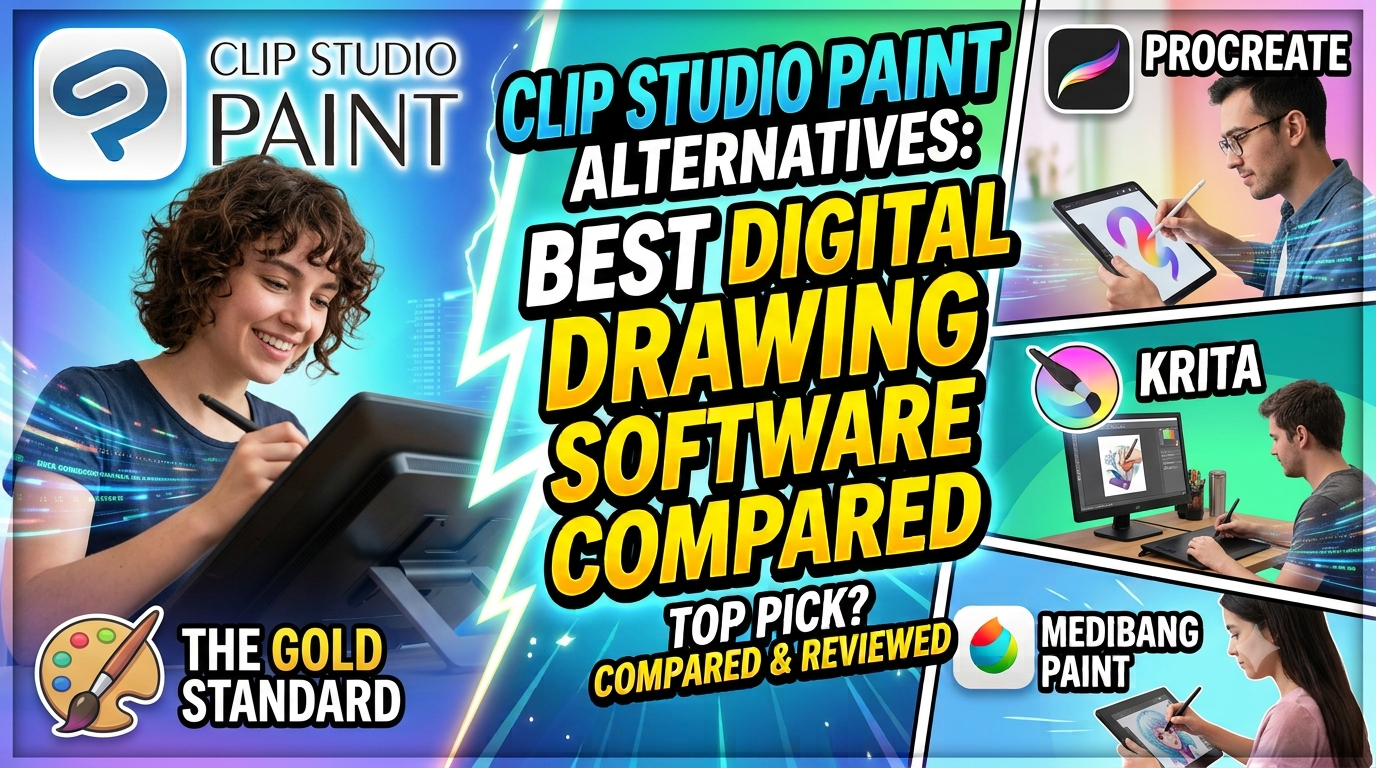
Discover the best Clip Studio Paint alternatives for digital drawing, illustration, manga, comics, and professional artwork. This comprehensive guide compares popular digital art software based on features, usability, pricing, drawing tools, and creative capabilities. Whether you’re searching for a free alternative to Clip Studio Paint, an iPad-friendly drawing app, or professional software for your creative workflow, explore the top options and find the digital drawing tool that best matches your artistic needs.
Table of Contents
- Why Look for Clip Studio Paint Alternatives?
- What to Look for in Digital Drawing Software
- Best Clip Studio Paint Alternatives at a Glance
- Krita – Best Free Clip Studio Paint Alternative
- Adobe Photoshop – Best for Professional Creative Workflows
- Procreate – Best Clip Studio Paint Alternative for iPad
- Corel Painter – Best for Realistic Digital Painting
- Adobe Fresco – Best for Natural Brushes and Adobe Users
- MediBang Paint – Best for Manga and Comic Beginners
- Sketchbook – Best for Simple Digital Sketching
- How to Choose the Right Clip Studio Paint Alternative
- Which Alternative Is Best for Different Types of Artists?
- Conclusion
- Frequently Asked Questions
Why Look for Clip Studio Paint Alternatives?
Clip Studio Paint is a capable creative platform, particularly for artists working with comics, manga, illustration, character art, and animation. Its specialized tools can make complex creative processes much easier, especially when you’re producing panel-based artwork or detailed line illustrations. Still, software preferences are deeply personal. A program that feels intuitive to one artist can feel unnecessarily complicated to another, and that is one of the biggest reasons people start searching for alternatives to Clip Studio Paint.
Cost is another consideration. Creative professionals may be comfortable paying regularly for software because it is part of their business expenses, while students, beginners, hobbyists, and freelancers may prefer free software or a straightforward one-time purchase. Platform availability matters too. An artist who creates almost exclusively on an iPad may prioritize touch gestures and Apple Pencil integration, whereas someone using a Windows drawing tablet might care more about desktop performance, file management, and keyboard shortcuts.
There is also the question of specialization. Clip Studio Paint is particularly strong in illustration and comic creation, but an artist who frequently edits photographs may benefit from Photoshop’s broader image-editing environment. Someone focused on traditional-looking paintings might prefer software designed around realistic brushes, while a beginner may simply want an uncluttered digital canvas where they can sketch without navigating dozens of advanced panels.
The good news is that artists have more options than ever. You don’t necessarily need to find software that copies Clip Studio Paint feature for feature. Instead, you need to identify the features that actually matter to your work and choose the program that delivers those features effectively.
Subscription Costs and Licensing Preferences
Software pricing has become an increasingly important factor when artists choose their creative tools. Because they get regular updates, cloud services, and access to related apps, some people feel totally at ease with subscriptions. Others strongly prefer buying software once and using it for years. Neither approach is universally better; what matters is whether the pricing structure makes sense for your budget and workflow.
For example, Krita remains an especially attractive choice for budget-conscious creators because its core desktop application is free and open source. As of June 2026, Krita’s official website showed Krita 5.3.2.1 as a stable download. The Qt6-based Krita 6 branch has also been developed recently. The project’s continued development demonstrates why open-source software should no longer automatically be viewed as a basic or compromised option.
At the other end of the spectrum, Adobe Photoshop operates within Adobe’s subscription ecosystem. Pricing varies by country, promotion, and plan. Adobe’s India pages, for example, were advertising Photoshop at ₹599 per month including GST for the first year for new subscribers at the time of this comparison, with a higher subsequent monthly rate. Artists considering Photoshop should always verify current local pricing before subscribing because promotions and plan structures can change.
Procreate takes a different route entirely. Its official website promotes a pay-once, no-subscription model, which has helped make it especially appealing to iPad artists who dislike recurring creative-software bills.
Different Creative Workflows Need Different Tools
Imagine asking three artists to create the same fantasy character. One might sketch with clean ink lines and build a comic page around the character. Another might paint the character using textured brushes that imitate oil paint. The third might combine digital painting, photography, typography, and graphic effects to create a promotional poster. Technically, all three artists are creating digital artwork, but their software requirements are completely different.
This is where choosing among Clip Studio Paint alternatives becomes interesting. Comic artists typically prioritize panel management, perspective tools, speech-bubble workflows, and strong inking capabilities. Digital painters may care more about brush engines, blending, canvas performance, and color management. Graphic designers often need advanced typography, masking, selection, and compositing tools. Mobile artists want responsive stylus support and interfaces designed around touch rather than desktop menus squeezed onto a smaller screen.
Before switching software, write down the five features you use most often. If four of them involve drawing and brushes, choose an illustration-first application. If most involve photo manipulation and compositing, consider Photoshop. If portability is your biggest priority and you already own an iPad, Procreate deserves serious attention.
The best software is rarely the program with the longest feature list. It is the program that puts your most-used features within easy reach.
What to Look for in Digital Drawing Software
When comparing the best digital drawing software, start with brush quality. A responsive brush engine can make digital drawing feel natural, while poor latency can make every stroke feel disconnected from your hand. Pressure sensitivity, stabilization, brush customization, texture support, blending, and stylus compatibility should therefore sit near the top of your checklist.
Layers are equally important. Even beginner artists quickly discover how useful layers become when separating sketches, line art, colors, shadows, highlights, and effects. Professional workflows may additionally require clipping masks, layer masks, adjustment tools, blend modes, groups, and non-destructive editing. The deeper your projects become, the more valuable good layer management becomes.
File compatibility deserves attention as well. If you regularly collaborate with clients or other creatives, support for commonly used formats such as PSD, PNG, JPEG, TIFF, and PDF can save considerable time. Artists moving between multiple applications should investigate whether complex layered files transfer correctly rather than assuming that format compatibility means every feature will survive the journey perfectly.
Finally, consider performance and interface design. An advanced application that constantly interrupts your creative flow can become frustrating. Look for software that runs reliably on your hardware and gives you quick access to your essential tools. Trial versions, where available, are extremely useful because ten minutes of actual drawing can sometimes tell you more than hours spent comparing specifications.
Best Clip Studio Paint Alternatives at a Glance
The following comparison provides a practical overview. Pricing models and availability can change, so always check the developer’s current terms before making a purchase.
| Software | Best For | Main Strength | Pricing Approach | Key Limitation |
| Krita | Budget-conscious digital artists | Powerful painting tools | Free and open source | Interface may require learning |
| Adobe Photoshop | Professional multi-purpose creatives | Editing and compositing ecosystem | Subscription | Can be expensive over time |
| Procreate | iPad artists | Touch-first drawing experience | One-time purchase | Apple ecosystem focused |
| Corel Painter | Traditional-style digital painters | Natural-media simulation | Commercial software | Can be demanding on hardware |
| Adobe Fresco | Adobe ecosystem artists | Live and natural-feeling brushes | Freemium/Adobe ecosystem | Less specialized for comics |
| MediBang Paint | Manga and comic beginners | Accessible comic creation | Free options available | Fewer advanced tools than some rivals |
| Sketchbook | Sketching and ideation | Clean, approachable interface | Varies by platform | Less suited to complex production |
No single winner emerges from this table because each application solves a slightly different problem. If your budget is zero, Krita immediately becomes compelling. If you’re working professionally across photography, graphic design, and digital illustration, Photoshop offers broader flexibility. If your iPad has essentially become your portable studio, Procreate is difficult to ignore.
That distinction is important because software comparisons often become feature-counting competitions. But an artist doesn’t create better work simply because an application contains 500 tools instead of 300. If you only need 30 of them, usability matters more than raw numbers.
Krita – Best Free Clip Studio Paint Alternative
Krita is arguably one of the strongest choices for anyone searching for a free Clip Studio Paint alternative. It is an open-source digital painting application designed with artists in mind, making it particularly suitable for illustration, concept art, texture work, comics, and digital painting. Unlike many free programs that feel like simplified versions of professional software, Krita offers a surprisingly deep creative environment.
Its biggest attraction is straightforward: you can build a serious digital art workflow without paying a recurring subscription. That makes Krita particularly valuable for students and emerging artists who need capable tools but cannot justify another monthly expense. It also makes experimentation easier. You can install it, explore the interface, test your drawing tablet, and decide whether it suits your workflow without worrying about a trial period expiring.
Krita’s development also remains active. The project’s official pages documented the release of Krita 5.3.2.1 in June 2026, following updates that addressed areas including text-tool issues, selections, Android behavior, and other bug fixes. Krita 6 development also reflects the project’s transition toward Qt6 for longer-term platform compatibility.
The main adjustment for newcomers is the interface. Krita provides many controls, dockers, brushes, and configuration options, and beginners may need some time to build a comfortable workspace. Once customized, however, it can become an efficient creative studio capable of handling serious artwork.
Why Artists Choose Krita
The appeal of Krita goes beyond the word “free.” Its brush system gives artists substantial control over how brushes behave, making it possible to create everything from sharp ink lines to textured painterly strokes. Artists who enjoy experimenting can customize their tools extensively rather than being locked into a small collection of presets.
Krita also benefits from the philosophy of open-source development. A global community contributes to its evolution, documentation, testing, and ecosystem. For creators who value open software and want greater independence from commercial subscription platforms, that alone can be meaningful.
It is particularly appealing for desktop artists. If you use Windows, macOS, or Linux with a drawing tablet, Krita deserves to be near the top of your testing list. Android support exists but remains beta and tablet-focused according to Krita’s 2026 release information, so mobile users should evaluate compatibility carefully.
Compared with Clip Studio Paint, Krita may not reproduce every specialized manga or comic-production workflow exactly. Yet for pure digital painting and illustration, it offers remarkable value. Think of it as a large community art studio: the door is open, the tools are available, and how far you take them depends largely on your willingness to learn.
Adobe Photoshop – Best for Professional Creative Workflows
Adobe Photoshop barely needs an introduction. While it began its life primarily as an image-editing application rather than dedicated drawing software, decades of development have turned it into a broad creative platform used across photography, illustration, advertising, design, compositing, and digital art.
For artists comparing Photoshop vs Clip Studio Paint, the deciding factor should be workflow. Clip Studio Paint generally feels more purpose-built for drawing, comics, manga, and illustration. Photoshop shines when artwork must coexist with advanced photo editing, compositing, image manipulation, design assets, and a broader professional production pipeline.
Photoshop’s ecosystem is another advantage.Moving materials between creative tools can facilitate professional workflows, as designers often work with various Adobe apps. This matters particularly in agencies and collaborative environments where artwork rarely exists in isolation.
Adobe also continues to expand Photoshop’s AI-assisted capabilities. Its July 2026 desktop update information highlighted features including Harmonize, Generative Upscale, and enhancements to Generative Fill. Artists have different opinions about generative AI, but from a software-comparison perspective, these tools demonstrate how Photoshop is evolving beyond conventional raster editing.
The trade-off is cost and complexity. If you only want to draw characters, Photoshop may feel like renting an entire workshop when you only need an easel. If your work spans illustration, photography, marketing graphics, and complex editing, however, that workshop can become extremely useful.
Photoshop vs Clip Studio Paint
Choosing between Photoshop and Clip Studio Paint comes down to specialization versus versatility. Clip Studio Paint is designed around artists and comic creators, offering workflows that naturally support line art, character illustration, panels, and related creative processes. Photoshop provides a broader editing environment where drawing is one part of a much larger toolkit.
For professional illustrators who regularly receive PSD files from clients, Photoshop can simplify collaboration. Its widespread adoption in creative industries means file compatibility and workflow familiarity can become practical advantages. At the same time, illustrators focused almost entirely on comics may find Clip Studio Paint’s specialized tools faster for daily production.
Pricing also deserves consideration. Photoshop’s subscription structure creates an ongoing expense, and Adobe pricing varies by market and promotion. Indian users, for example, should check Adobe’s current local pricing rather than relying on US dollar figures from international comparisons. At the time of research, Adobe’s Indian Photoshop page displayed a promotional first-year individual price of ₹599 per month including GST for new subscribers, while terms and subsequent pricing differed.
Choose Photoshop when your creative life extends well beyond drawing. Choose a more specialized alternative when illustration is your world and you don’t need the extra machinery.
Procreate – Best Clip Studio Paint Alternative for iPad
If you own an iPad and love drawing directly on a screen, Procreate is one of the most compelling Clip Studio Paint alternatives available. Instead of feeling like desktop software transplanted onto a tablet, Procreate was designed around the iPad experience. That difference becomes apparent when you’re using gestures, navigating the canvas, adjusting tools, and drawing with an Apple Pencil.
Procreate combines a relatively approachable interface with a surprisingly substantial feature set. According to its current App Store listing, the application supports high-resolution canvases on compatible hardware, customizable brushes, layers and blend modes, masks, drawing guides, animation tools, time-lapse recording, PSD workflows, and numerous import and export formats. The exact canvas limits depend on the iPad model and available resources.
Another major attraction is its pricing philosophy. Procreate’s official site emphasizes that the iPad app uses a one-time purchase rather than a recurring subscription, with its US page listing a $12.99 price at the time of research. Regional App Store pricing may differ.
Its biggest limitation is equally obvious: platform availability. Procreate is built around Apple’s hardware ecosystem. Windows and Android artists therefore need to look elsewhere.
Why Procreate Works So Well on iPad
Procreate succeeds because it treats the tablet as a creative medium rather than a smaller computer. The interface gets out of your way, allowing the canvas to dominate the screen. Gestures make common actions feel natural, while Apple Pencil support creates a responsive connection between hand and artwork.
The brush ecosystem is another major strength. Procreate includes a broad brush library and allows artists to customize brushes through Brush Studio. Its support resources also document importing and organizing brush files, giving creators room to build personalized collections.
For social media creators, the built-in time-lapse workflow can be especially useful. Artists can capture the progression of an illustration and turn the creative process itself into content. This makes Procreate attractive not only for artists but also for illustrators building audiences on visual platforms.
If you create long, complex comics with specialized production requirements, you may still prefer Clip Studio Paint. But for portable illustration, sketching, character art, and digital painting, Procreate offers an unusually balanced combination of simplicity and depth.
Corel Painter – Best for Realistic Digital Painting
Corel Painter occupies a different corner of the digital art world. While many drawing applications attempt to give artists clean digital tools, Painter has historically focused heavily on recreating the sensation and behavior of traditional artistic media. For artists who love oils, watercolor, chalk, pastels, and textured surfaces but want the flexibility of a digital canvas, this approach can be highly attractive.
The difference is philosophical as much as technical. Clip Studio Paint excels when precision, illustration, and comic-oriented workflows matter. Painter appeals to creators who want digital strokes to feel less mechanically digital. If you are a traditional painter moving into digital art, familiar media-inspired tools can make the transition feel more natural.
That specialization does create a learning curve. Realistic brush systems often come with numerous settings, categories, and behaviors. Artists who simply want to sketch clean line art may find the depth unnecessary, while painters who enjoy experimenting with texture may see it as the application’s greatest advantage.
Hardware performance is also worth investigating before committing. Sophisticated brush simulation can be demanding, particularly when working with large canvases and complex brush effects. Testing the software on your actual machine is therefore more useful than judging it purely from feature lists.
Adobe Fresco – Best for Natural Brushes and Adobe Users
Adobe Fresco is worth considering if you enjoy expressive drawing and painting while already working within Adobe’s ecosystem. Its creative identity centers strongly on drawing and painting, giving it a different personality from Photoshop even though the two applications can complement one another.
Fresco can be especially attractive to artists who like switching between different types of digital brushes and want an experience that feels more illustration-focused than a general image editor. This makes it relevant for sketching, painting, concept development, and expressive artwork.
The biggest reason to choose Fresco over a completely independent application is workflow integration. If your projects eventually move into Photoshop or other Adobe tools, staying within a connected ecosystem can reduce friction. For professional creators, small workflow efficiencies accumulate quickly when repeated every day.
However, artists primarily interested in advanced manga and comic production should compare specialized tools carefully. Fresco’s strengths are not identical to Clip Studio Paint’s strengths, and choosing it purely because both applications support drawing would miss the bigger picture.
Think about where your artwork goes after you finish drawing. If the answer frequently involves Adobe applications, Fresco becomes more compelling. If your entire workflow begins and ends with comics, another alternative may suit you better.
MediBang Paint – Best for Manga and Comic Beginners
MediBang Paint is a popular name among artists looking for an accessible entry point into digital illustration and comic creation. It can be particularly appealing to beginners who want to explore manga-style artwork without immediately investing heavily in professional software.
The application’s comic-oriented identity makes it a logical alternative for people attracted to Clip Studio Paint primarily because of manga and illustration. Beginners can explore concepts such as digital inking, layers, comic layouts, and creative assets while developing their artistic workflow.
Accessibility is one of MediBang’s biggest advantages. Professional creative applications sometimes overwhelm new artists with dense interfaces and terminology. A more approachable environment can help beginners focus on drawing rather than spending their first week configuring software.
That said, experienced professionals with complex production pipelines may eventually want deeper functionality. The question isn’t whether MediBang can create good artwork—it absolutely can in skilled hands—but whether its toolset matches the scale and complexity of your projects.
For students and aspiring manga creators, it remains a sensible program to test before committing to more expensive solutions.
Sketchbook – Best for Simple Digital Sketching
Sometimes you don’t want an enormous digital studio. You just want to open an application and draw. Sketchbook appeals strongly to this kind of creator by emphasizing a relatively clean drawing environment that works well for sketching, ideation, and visual exploration.
This simplicity can be surprisingly powerful. Creative ideas are fragile things; if you have to navigate a maze of menus before putting down the first line, the spark can disappear. Sketchbook’s appeal lies in reducing the distance between having an idea and drawing it.
Concept artists, students, designers, and casual illustrators may appreciate this approach. It can function like a digital notebook where rough ideas develop before moving into more advanced production software.
The limitation appears when projects become complicated. Artists producing multi-page comics, sophisticated print-ready illustrations, or advanced compositing work may eventually need more specialized capabilities.
Still, not every artist needs a feature-packed application.Sketchbook is worth considering if your main objective is to sketch and draw without needless complexity.
Read More:-
Parcel ABC UK Shipping Guide: Features, Pricing, and Benefits Explained
Why Fun-sport-vision.com DE Is Gaining Popularity in Germany
Mashvisor (US): Complete Review for Real Estate Investors in 2026
What Is Scandic SE? A Complete Beginner’s Guide
Simpel NL Explained: Everything You Need to Know
How to Choose the Right Clip Studio Paint Alternative
Choosing among the best Clip Studio Paint alternatives becomes much easier when you stop asking, “Which software is best?” and start asking, “Which software is best for what I actually create?”
Begin with your device. An iPad-focused artist should seriously evaluate Procreate, while Windows, macOS, and Linux desktop users looking for free software should consider Krita. Artists deeply embedded in professional Adobe workflows may find Photoshop or Fresco more convenient.
Next, evaluate your creative specialization. Manga and comic artists need different tools from traditional-style digital painters. Concept artists may prioritize brushes and speed, while commercial designers may care about compatibility and compositing.
Budget should come next. Compare the total cost over several years rather than only the initial price. A small monthly subscription can eventually cost considerably more than a one-time purchase, but subscriptions may also include updates, cloud storage, and additional services that provide genuine value.
Finally, test before committing whenever possible. Draw a complete small project—not merely a few random lines. Create layers, import references, customize brushes, save files, export the finished work, and reopen the project. That mini workflow will reveal friction points that specification sheets cannot show.
Which Alternative Is Best for Different Types of Artists?
For artists who want the strongest free Clip Studio Paint alternative, Krita is the standout recommendation. It provides a mature digital painting environment without requiring a conventional subscription, and active development continues to expand and maintain the platform.
For iPad creators, Procreate offers one of the most natural tablet-focused experiences. Its combination of Apple Pencil support, customizable brushes, layers, animation-related features, and one-time purchase model makes it particularly appealing to mobile illustrators.
For multidisciplinary professionals, Photoshop remains compelling because drawing exists alongside advanced editing and compositing capabilities. Its broader creative ecosystem makes sense when illustration is only one part of your work.
Traditional-style painters should investigate Corel Painter, while Adobe-focused illustrators may appreciate Fresco. Manga beginners can explore MediBang Paint, and artists who mainly want a distraction-free sketching experience may prefer Sketchbook.
The smartest approach is to shortlist two or three applications and test them using the same drawing project. Software should feel like an extension of your hand, not an obstacle sitting between your imagination and the canvas.



Conclusion
Finding the perfect Clip Studio Paint alternative isn’t about replacing every Clip Studio Paint feature with an identical counterpart. It is about understanding your own creative priorities and choosing software that supports them.
Krita is an excellent starting point for artists seeking powerful free and open-source digital painting software. Adobe Photoshop makes sense for professionals who need drawing, editing, and compositing within a larger creative workflow. Procreate is an outstanding choice for iPad artists who value portability, an intuitive touch-first experience, and a one-time purchase model.
Corel Painter offers a compelling environment for traditional-media-inspired digital painting, while Adobe Fresco, MediBang Paint, and Sketchbook each serve different creative audiences.
Your tools matter, but they are only part of the equation. A brilliant artist can create something memorable with simple software, while the most expensive application cannot replace practice, experimentation, and imagination. Choose the program that makes you want to open a blank canvas and start creating—that is usually the clearest sign you’ve found the right tool.
Frequently Asked Questions
Q. What is the best free alternative to Clip Studio Paint?
A. Krita is one of the strongest free alternatives to Clip Studio Paint, particularly for digital painting and illustration. It is open source, actively developed, and available for major desktop platforms. Artists interested specifically in highly specialized comic-production features should still compare individual tools before switching completely.
Q. Is Krita better than Clip Studio Paint?
A. Neither application is universally better. Krita is particularly attractive because it is free, open source, and capable of professional-quality digital painting. Clip Studio Paint may be preferable for artists whose workflows rely heavily on specialized comic, manga, and illustration features. Your preferred application will depend on your workflow.
Q. Is Procreate a good replacement for Clip Studio Paint?
A. Procreate can be an excellent replacement for artists primarily working on an iPad. It offers extensive brushes, layers, masks, drawing assistance, animation-related functionality, and broad export options in a touch-friendly interface. However, creators requiring advanced multi-page comic workflows should compare its capabilities with Clip Studio Paint before migrating.
Q. Is Photoshop better than Clip Studio Paint for digital art?
A. Photoshop can be better when your work combines digital painting with photo manipulation, compositing, graphic design, and professional Adobe workflows. Clip Studio Paint is generally more specialized around illustration, comics, and manga creation. Professional artists should choose according to the type of projects they handle most frequently rather than brand popularity.
Q. Which Clip Studio Paint alternative is best for beginners?
A. Krita is a strong option for beginners who want free software with room to grow, while Procreate is especially approachable for people who already own a compatible iPad. MediBang Paint can also appeal to beginners interested specifically in manga and comic creation. The best strategy is to try a few options and complete a small project in each before settling on your main creative application.