

Discover our in-depth Parallels.com review and find out why Parallels Desktop is considered one of the best virtualization solutions for Mac users in 2026. Learn about its performance on Apple Silicon Macs, Windows 11 compatibility, gaming support, pricing, features, pros and cons, and how it compares to VMware Fusion and other alternatives. Whether you’re a student, developer, gamer, or business professional, this detailed guide helps you decide if Parallels Desktop is the right choice for your workflow.
Table of Contents
- What Is Parallels Desktop?
- Key Features of Parallels Desktop
- Installation and Setup Experience
- Performance Review in 2026
- Compatibility and Supported Operating Systems
- Pricing and Subscription Plans
- Parallels for Gaming
- Security and Privacy Features
- Parallels vs VMware Fusion
- Parallels vs CrossOver and UTM
- Best Use Cases for Parallels Desktop
- Pros and Cons of Parallels Desktop
- Final Verdict
- Conclusion
- FAQs
What Is Parallels Desktop?
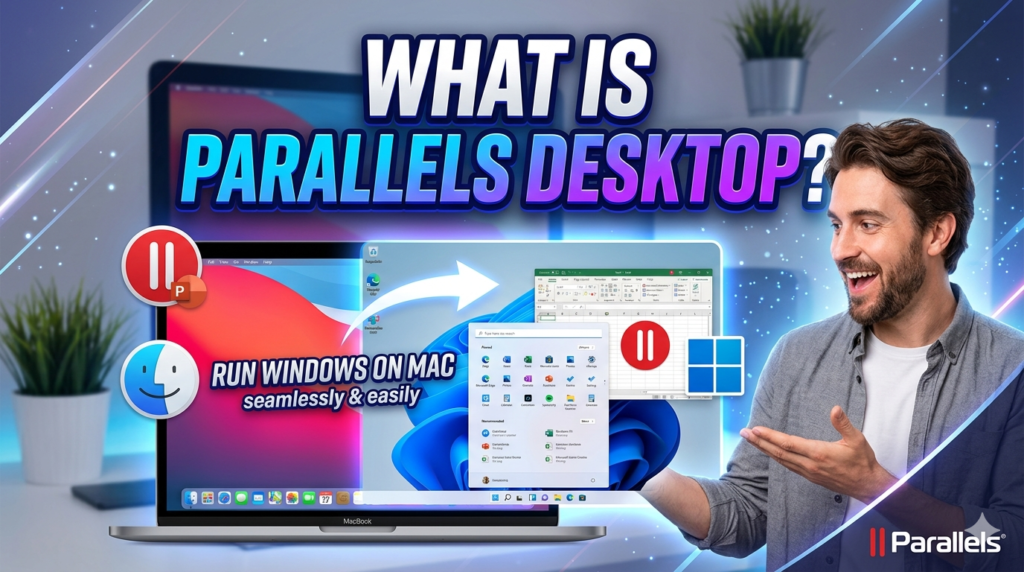
Parallels Desktop is one of the most popular virtualization platforms designed specifically for macOS. In simple words, it allows Mac users to run Windows, Linux, and other operating systems directly inside macOS without rebooting their computer. Think of it like having a second computer living inside your Mac. Instead of switching devices or restarting every time you need Windows software, Parallels lets both operating systems work side by side almost magically.
Virtualization itself isn’t new, but Apple’s transition to M-series chips changed the game entirely. Many older virtualization tools struggled to adapt to Apple Silicon. Parallels moved quickly and became one of the few Microsoft-authorized solutions capable of running Windows 11 ARM on M1, M2, M3, and newer Macs. That alone gave it a massive advantage over competitors.
The software appeals to a wide audience. Students use it for Windows-only educational apps. Developers rely on it for testing environments. Businesses run legacy enterprise software without needing separate Windows hardware. Even gamers use Parallels to access Windows-exclusive titles. Instead of treating macOS and Windows as rivals, Parallels makes them behave like roommates sharing the same apartment peacefully.
Understanding Virtualization on Mac
Before tools like Parallels became mainstream, Mac users who needed Windows had limited options. Boot Camp required rebooting every time you wanted to switch operating systems. Emulators were often slow and unreliable. Virtualization changed everything because it created isolated virtual machines that behave like real PCs inside macOS.
Parallels uses hypervisor-based virtualization technology to allocate CPU cores, memory, storage, and graphics resources dynamically. That means your Mac can essentially split itself into multiple working environments. One moment you’re editing videos in Final Cut Pro, and the next you’re using Microsoft Excel for Windows without interruption.
Why Mac Users Need Windows Access
Despite macOS becoming stronger every year, some applications still remain Windows-exclusive. Corporate software, engineering tools, accounting programs, and many games continue to prioritize Windows compatibility. Instead of abandoning their Mac ecosystem, users increasingly prefer virtualization software that combines both worlds.
Parallels succeeds because it removes friction. It feels less like “running Windows” and more like extending macOS itself.
Key Features of Parallels Desktop
Parallels Desktop comes packed with features that make virtualization feel surprisingly natural. Some virtualization platforms feel technical and intimidating, but Parallels focuses heavily on simplicity and user experience.
Coherence Mode
One of the standout features is Coherence Mode. Instead of displaying the full Windows desktop, Parallels lets Windows applications appear directly alongside Mac apps. Imagine opening Microsoft Access or Visual Studio while still using Safari and Finder normally. It almost feels like Windows apps were native macOS applications all along.
This feature becomes incredibly useful for professionals who depend on specific Windows-only programs. Designers can switch between Adobe Creative Cloud on macOS and Windows utilities without mentally changing environments. The workflow feels smooth rather than fragmented.
Seamless File Sharing
Parallels also excels in cross-platform file sharing. Drag-and-drop support between macOS and Windows works effortlessly. Shared folders, copy-paste functionality, USB device integration, and synchronized cloud storage all reduce the usual headaches associated with operating system switching.
For example, you can download a file in Safari on macOS and instantly open it in a Windows-only engineering tool running inside the virtual machine. That level of integration is one of Parallels’ strongest selling points.
Apple Silicon Optimization
Parallels has invested heavily in optimization for Apple Silicon Macs. Performance on M-series chips is dramatically better than earlier Intel virtualization experiences. According to Parallels, the software supports the latest macOS versions while leveraging the efficiency of Apple hardware architecture.
Applications launch faster, virtual machines boot quickly, and multitasking feels surprisingly fluid even on MacBook Air models.
Gaming and Graphics Support
Gaming support has improved significantly in recent years. Parallels now supports DirectX acceleration and better GPU virtualization, making some Windows games playable on Mac hardware. While it’s not a replacement for a dedicated gaming PC, casual and mid-level gaming performance is far more practical than many people expect.
Installation and Setup Experience
Setting up Parallels Desktop is refreshingly easy compared to traditional virtualization software. Even users with minimal technical experience can install Windows within minutes.
Installing Windows 11 on Mac
Parallels simplifies the process by automatically downloading and configuring Windows 11 ARM for compatible Apple Silicon Macs. Instead of manually creating ISO files or dealing with drivers, users follow a guided setup wizard that handles most tasks automatically.
This is one area where Parallels truly separates itself from competitors. VMware Fusion and UTM often require more technical configuration, while Parallels feels polished and consumer-friendly from the beginning.
The installation experience resembles setting up a new app rather than configuring enterprise virtualization software. That accessibility matters because not every Mac owner is an IT professional.
User Interface and Ease of Use
The interface is modern, intuitive, and clearly designed for macOS users. Virtual machines are easy to create, manage, duplicate, pause, and optimize. Resource allocation settings are available for advanced users, but beginners can rely on smart automatic optimization.
Parallels also includes helpful presets for gaming, productivity, software development, and design workflows. Instead of overwhelming users with technical jargon, it translates virtualization settings into practical use cases.
That attention to user experience explains why so many non-technical Mac users prefer Parallels over open-source alternatives.
Performance Review in 2026

Performance is the key to virtualization software’s success or failure.Nobody wants a sluggish virtual machine that turns their premium MacBook into a laggy mess. Fortunately, Parallels performs impressively well in 2026.
Speed on M-Series Macs
Apple Silicon dramatically improved virtualization efficiency. On M1, M2, M3, and newer chips, Windows boots quickly and applications launch smoothly. Benchmark tests from reviewers consistently show Parallels outperforming many competitors in startup speed and responsiveness.
Office applications run almost natively. Browsers feel fluid. Even moderate multitasking workloads remain stable. Developers running Docker containers or Linux virtual machines also report excellent results.
The ARM architecture does create some compatibility limitations for older Windows x86 applications, but Microsoft’s translation layer has improved substantially over time.
RAM and CPU Allocation
Parallels allows users to customize resource allocation based on workload needs. Pro Edition users can allocate up to 128 GB of virtual RAM and 32 virtual CPUs. That flexibility matters for developers, engineers, and enterprise environments running resource-intensive applications.
Casual users typically won’t need advanced tuning because Parallels intelligently balances system resources automatically.
Battery and Resource Efficiency
One underrated improvement in recent Parallels versions is energy efficiency. Earlier virtualization software often destroyed MacBook battery life, but Apple Silicon optimization significantly reduced power consumption.
Virtual machines still consume more resources than native apps, of course, but Parallels feels surprisingly lightweight considering the complexity of what it’s doing behind the scenes.
Compatibility and Supported Operating Systems
Compatibility is another major reason why Parallels remains popular.
Windows 11 ARM Support
Microsoft officially authorizes Parallels for running Windows 11 ARM on Apple Silicon Macs. That endorsement adds credibility and ensures better long-term support.
Many enterprise users depend on Windows compatibility for critical workflows, so official support matters greatly.
Linux and Other Virtual Machines
Parallels also supports Linux distributions including Ubuntu, Fedora, Debian, and Kali Linux. Developers can create isolated testing environments quickly, making Parallels useful beyond just Windows virtualization.
Some users even run older macOS versions virtually for testing purposes. This flexibility transforms Parallels into a complete cross-platform environment rather than a simple Windows launcher.
Pricing and Subscription Plans
Pricing remains one of the most debated aspects of Parallels Desktop.
| Plan | Best For | Price Range |
| Standard Edition | Casual users and students | Around $99.99/year |
| Pro Edition | Developers and power users | Around $119.99/year |
| Business Edition | Teams and enterprises | Around $149.99/year |
Standard vs Pro vs Business
The Standard Edition works perfectly for everyday productivity tasks. Most home users probably won’t need anything beyond this tier.
The Pro Edition unlocks advanced developer tools, increased resource allocation, command-line utilities, and enhanced networking features. Business Edition focuses more on deployment management and enterprise controls.
Is Parallels Worth the Price?
This question depends entirely on your needs. Free alternatives exist, but they often require technical expertise and deliver weaker integration.
Parallels charges premium pricing because it offers premium convenience. It’s similar to choosing a luxury automatic car over a cheaper manual vehicle. Both reach the destination, but one makes the journey dramatically easier.
Still, many users dislike the subscription model. Some Reddit discussions criticize rising prices and expensive perpetual licenses. That frustration is understandable, especially for casual users.
Parallels for Gaming
Gaming on Mac has always been complicated, and virtualization only partially solves the issue.
DirectX and Graphics Performance
Parallels supports DirectX acceleration, allowing many Windows games to run on Mac hardware. Casual games, indie titles, and older AAA games generally perform reasonably well.
Recent improvements to GPU virtualization also help boost frame rates and stability.
Real Gaming Expectations
Let’s be realistic though. A dedicated gaming PC cannot be replaced by Parallels.Competitive gamers expecting ultra settings and high refresh rates may feel disappointed.
Some anti-cheat systems also block virtualized environments entirely. Games relying heavily on advanced DirectX 12 features may struggle or fail to launch.
For occasional gaming and older titles, Parallels works surprisingly well. For hardcore gaming, cloud gaming or a dedicated Windows machine remains the better choice.
Security and Privacy Features
Running multiple operating systems naturally raises security concerns, but Parallels includes several protections designed to isolate environments safely.
Virtual machines operate independently from the host operating system. That means malware inside Windows generally cannot directly infect macOS unless shared folders or permissions create vulnerabilities.
Businesses appreciate encryption support, virtual TPM integration, centralized deployment controls, and network isolation features. Security-conscious users can also create disposable test environments for risky downloads or experimental software.
This sandbox-like functionality becomes especially valuable for developers and cybersecurity professionals.
Parallels vs VMware Fusion
VMware Fusion is Parallels’ biggest traditional competitor. The difference between them often comes down to usability versus cost.
VMware Fusion became free for personal use, which immediately attracted budget-conscious users. However, Parallels still maintains an advantage in polish, integration, and Apple Silicon optimization.
| Feature | Parallels Desktop | VMware Fusion |
| Ease of Use | Excellent | Moderate |
| Apple Silicon Support | Outstanding | Improving |
| Gaming Support | Better | Limited |
| Price | Premium Subscription | Free Personal Use |
| macOS Integration | Best-in-Class | Good |
For professionals who value convenience and reliability, Parallels usually feels worth the extra money.
Parallels vs CrossOver and UTM
CrossOver works differently because it doesn’t virtualize Windows itself. Instead, it translates Windows applications to run directly on macOS using Wine compatibility layers.
That approach reduces resource usage but sacrifices compatibility.
UTM, meanwhile, is free and open-source. It appeals to technical users who enjoy customization and experimentation. The downside is complexity. Setup can feel intimidating for average users.
Parallels wins because it balances power, compatibility, performance, and usability more effectively than either competitor.
Best Use Cases for Parallels Desktop
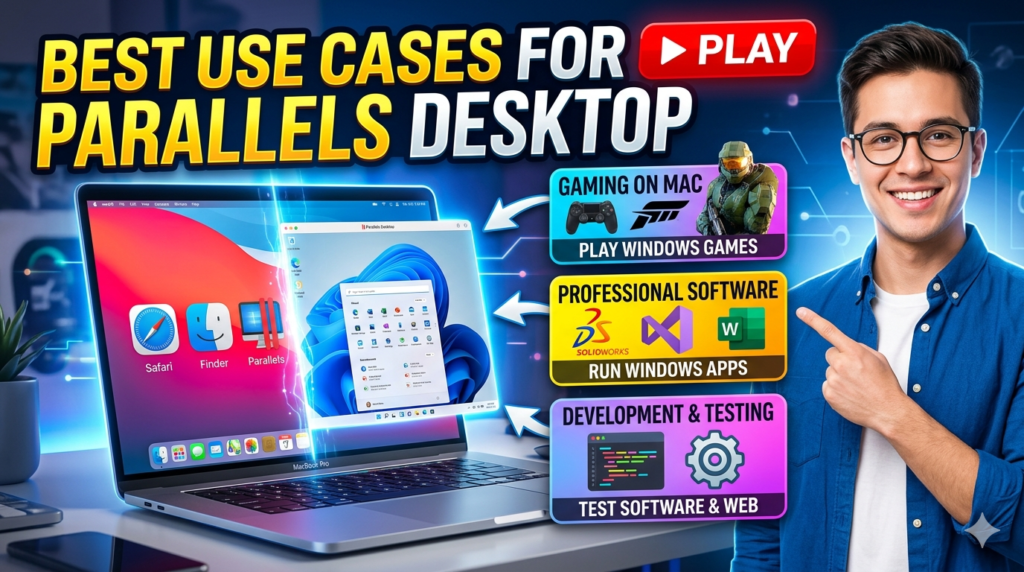
Parallels Desktop isn’t just for one type of user. Its flexibility makes it valuable across many professions and lifestyles.
Students often use it for Windows-only educational software. Developers rely on Linux containers and cross-platform testing environments. Businesses use it to preserve access to legacy applications without buying separate hardware.
Creative professionals also benefit from hybrid workflows. Imagine editing video in Final Cut Pro while simultaneously using a Windows-based rendering utility. That kind of seamless multitasking becomes possible through virtualization.
Even remote workers appreciate being able to securely access company-specific Windows software from personal Macs.
Read More:-
How Does Strikingly Simplify the Website Building Process?
Building Your Dream Website with Site123
Boost Your E-commerce Strategy with YITH Plugins
Maximize Your Customer Engagement with LiveAgent’s Features
Why STRIPO is Essential for Digital Product Marketers
Pros and Cons of Parallels Desktop
| Pros | Cons |
| Excellent macOS integration | Expensive subscription pricing |
| Fast performance on Apple Silicon | Some games unsupported |
| Easy setup process | Requires Windows license separately |
| Strong Windows compatibility | Heavy workloads consume resources |
| Seamless file sharing | Premium features locked behind Pro plan |
| Great for developers and professionals | Subscription model frustrates some users |
Final Verdict
Parallels Desktop remains the gold standard for Mac virtualization in 2026. Its combination of speed, polish, compatibility, and ease of use makes it difficult to beat.
What truly separates Parallels from competitors is how natural everything feels. Instead of forcing users to think about virtualization constantly, it quietly blends Windows and macOS into a unified workflow.
Yes, the pricing is higher than some alternatives. Yes, hardcore gamers may still need dedicated Windows hardware. But for professionals, students, developers, and productivity-focused users, Parallels delivers enormous practical value.
It’s less about “running Windows on Mac” and more about eliminating operating system barriers entirely.




Conclusion
Parallels Desktop proves that virtualization doesn’t have to feel technical or frustrating. It transforms Macs into flexible multi-platform machines capable of running Windows, Linux, and macOS workflows simultaneously with impressive stability.
The software shines brightest on Apple Silicon Macs, where performance improvements make virtualization smoother than ever before. Coherence Mode, seamless integration, strong compatibility, and polished usability all contribute to its reputation as the leading virtualization solution for Mac users.
While free alternatives exist, they rarely match the balance of convenience and performance Parallels offers. If your workflow regularly depends on Windows applications, Parallels Desktop can easily justify its cost by saving time, reducing friction, and simplifying your entire computing experience.
FAQs
Q. Is Parallels Desktop safe for Mac users?
A. Yes, Parallels Desktop is generally considered safe and reliable. Virtual machines are isolated environments, which helps protect the main macOS system from many security risks.
Q. Can Parallels run Windows 11 on M1 and M2 Macs?
A. Yes. Parallels officially supports Windows 11 ARM on Apple Silicon Macs and is recognized as a Microsoft-authorized solution.
Q. Does Parallels slow down Mac performance?
A. Parallels uses system resources, but modern Apple Silicon Macs handle virtualization very efficiently. Performance impact is usually minimal during normal workloads.
Q. Is VMware Fusion better than Parallels?
A. VMware Fusion is a strong alternative, especially because of its free personal-use model. However, Parallels generally offers better macOS integration, usability, and gaming support.
Q. Can you play games using Parallels Desktop?
A. Yes, many Windows games run through Parallels, especially older or less demanding titles. Competitive AAA gaming performance may still be limited compared to native Windows PCs.