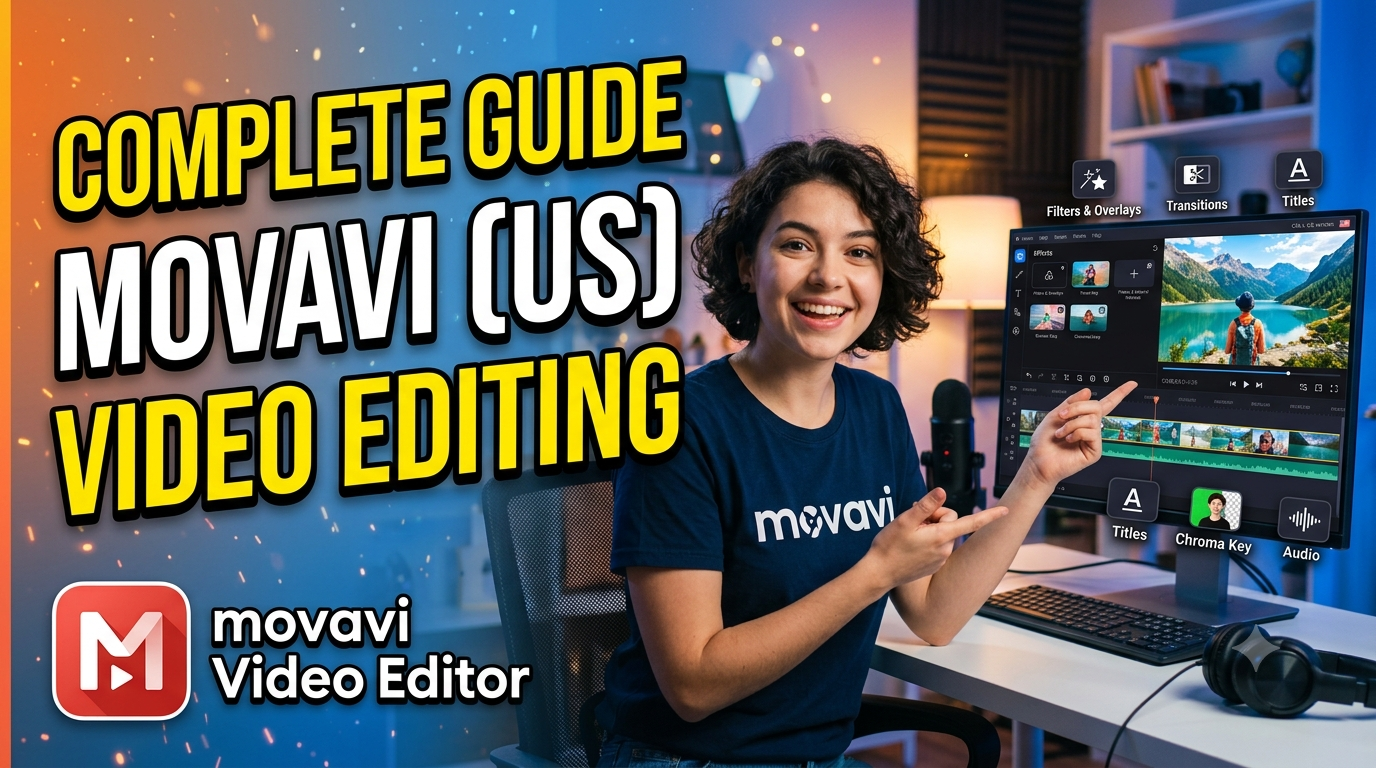
Discover Movavi (US), a user-friendly video editing solution packed with powerful tools and creative features for beginners, content creators, educators, and businesses. Explore Movavi (US) features such as AI-powered background removal, automatic subtitles, noise reduction, motion tracking, transitions, filters, titles, chroma key, 4K video editing, screen recording, and video conversion. Whether you’re creating YouTube videos, social media content, tutorials, presentations, or personal projects, Movavi (US) makes video creation faster, easier, and more engaging.
Table of Contents
- What Is Movavi and Who Is It For?
- Movavi Video Editor 2026 at a Glance
- Movavi AI Video Editing Features
- Auto Subtitles and Speech-Based Editing
- Motion Tracking and Creative Effects
- Transitions, Filters, Titles, and Overlays
- Chroma Key and Background Effects
- Color Correction and Video Enhancement
- One-Click Silence Removal and Faster Editing
- Movavi Screen Recorder
- Movavi Video Converter
- Movavi Video Suite
- Movavi Effects and Creative Content
- Movavi Pricing and Plans in the US
- Movavi for YouTube, TikTok, and Social Media
- Movavi for Business, Education, and Tutorials
- Movavi Performance, Compatibility, and System Requirements
- Pros and Cons of Movavi
- Is Movavi Worth Using in 2026?
- Conclusion
- FAQs
What Is Movavi and Who Is It For?
Movavi is a video-creation software ecosystem designed around an idea that sounds simple but matters enormously: powerful editing tools should not require a steep learning curve. Instead of forcing every user to learn a complicated professional workflow before making a usable video, Movavi combines a streamlined timeline, ready-made creative assets, automation, and AI-assisted tools in a relatively approachable interface. The current Movavi Video Editor 2026 is positioned for everything from short social clips to longer personal projects, with tools for cutting, cropping, color adjustment, speed changes, effects, transitions, titles, overlays, and AI-assisted editing. Movavi also offers related applications for screen recording, media conversion, photo editing, and broader video-production workflows.
That makes the software especially interesting for creators who sit somewhere between “I have never edited a video” and “I need a professional post-production workstation.” A student preparing a presentation, a YouTuber editing weekly uploads, a small business producing product demonstrations, or someone turning holiday footage into a polished family movie can all find a practical use for the platform. Movavi says its software is used by more than 70 million creators across more than 190 countries, while its current product pages emphasize a large library of creative effects and frequent updates. The important point is not simply the number of tools available, but how those tools fit together: the software tries to remove unnecessary friction between importing footage and producing something you are comfortable sharing.
Why Movavi Appeals to Beginners
The biggest advantage of Movavi becomes clear when you compare the experience with more intimidating editing applications. A beginner does not necessarily want to understand every technical concept behind masking, keyframes, codecs, color spaces, or advanced compositing before making a 60-second video. They want to put clips on a timeline, remove unwanted sections, add music, create captions, make the colors look better, and export the finished result. Movavi’s current interface and feature set are built around exactly that kind of workflow, including a revamped timeline intended to make projects easier to navigate.
The approach also benefits experienced casual editors who value speed. If you already understand the basics of editing, automation can remove repetitive work without forcing you into an unnecessarily complex process. AI-powered background removal, noise reduction, motion tracking, and automatic subtitles can handle tasks that otherwise consume considerable manual effort. That balance is arguably Movavi’s strongest selling point: it does not try to overwhelm you with every possible professional feature; instead, it focuses on giving ordinary creators a practical toolkit that can produce polished-looking results relatively quickly.
Movavi Video Editor 2026 at a Glance
The centerpiece of the Movavi ecosystem is Movavi Video Editor 2026, available for Windows and Mac. The current product emphasizes fast editing, AI-assisted tools, creative effects, and a redesigned timeline. Movavi lists tools for cutting, cropping, color adjustment, speed control, automatic subtitles, noise removal, and a large selection of filters, transitions, titles, and overlays. The company also highlights recent additions including one-click silence removal, faster effect copying, more than 30 automatic subtitle styles, and more than 40 adjustable effects.
For someone evaluating the editor, it helps to think of it as a production pipeline rather than simply a trimming application. You can import footage, organize it, remove unwanted material, adjust the appearance, add creative elements, improve sound, generate captions, and prepare the final file without constantly switching between unrelated programs. That is particularly useful for content creators who need consistency. Once you establish a familiar editing routine, the interface becomes less of a technical obstacle and more like a workbench where each tool has a clear purpose.
Core Editing Capabilities
At the foundation are the editing functions you would expect from a modern video editor: cutting, splitting, trimming, merging, rotating, flipping, cropping, adjusting color, changing playback speed, and improving video quality. Movavi also supports 4K video processing, which matters for users recording high-resolution footage on modern smartphones, cameras, and screen-recording setups.
The timeline is where these capabilities become useful in combination. Imagine your raw footage as a pile of puzzle pieces scattered across a table. Cutting and trimming identify the pieces worth keeping; rearranging puts the story in the correct order; transitions smooth the movement between scenes; titles provide context; music establishes mood; color correction gives the entire project a consistent visual identity. Movavi’s streamlined workflow is designed to make those operations accessible without requiring a highly specialized editing background.
Movavi AI Video Editing Features
AI is one of the most noticeable areas of development in current Movavi products. Rather than presenting artificial intelligence as a gimmick, the editor uses it for practical tasks that traditionally required repetitive manual work. Movavi’s documentation identifies AI-powered background removal, motion tracking, automatic subtitles, and other intelligent functions as part of the editor’s feature set.
This is particularly valuable for solo creators. When one person is responsible for recording, editing, captioning, publishing, and promoting a video, every minute matters. An automated tool that handles a repetitive task can make the difference between finishing a project today and leaving it unfinished until next week. Movavi’s AI tools are therefore best understood as productivity features: they do not replace creative decisions, but they can reduce the amount of mechanical work between the raw footage and the final edit.
AI Background Removal and Replacement
Background removal is one of the clearest examples of this philosophy. Movavi’s AI background removal can identify a subject and separate it from the surrounding background without requiring a traditional green-screen setup. The company describes different processing approaches, including options oriented toward faster or more precise results.
For creators, this opens several possibilities. You could place a presenter over a branded background, remove a distracting environment from a talking-head clip, create a cleaner product demonstration, or build a social-media graphic around a person or object. The practical advantage is that you can accomplish an effect that once demanded more specialized compositing knowledge through a much simpler workflow. Of course, AI segmentation is not magic; complex hair, transparent objects, motion blur, or visually similar foreground and background elements can still challenge automated processing. But for everyday projects, the tool can dramatically reduce the amount of manual masking required.
AI Noise Removal and Audio Cleanup
Poor audio can make a visually impressive video feel amateurish within seconds. Movavi addresses this with AI-based noise reduction designed to remove unwanted sounds from recordings. The current Video Editor product specifically promotes noise removal as one of its one-click AI capabilities.
This is useful for videos recorded in bedrooms, offices, classrooms, outdoor environments, or other places where complete acoustic control is impossible. Background traffic, fans, wind, hum, and other distractions can compete with speech, making viewers work harder to understand what is being said. AI noise reduction can help bring the voice forward and make the overall soundtrack more comfortable to hear. It should still be treated as cleanup rather than a substitute for good recording technique, because starting with a decent microphone and controlled environment remains the best foundation for high-quality audio.
Auto Subtitles and Speech-Based Editing
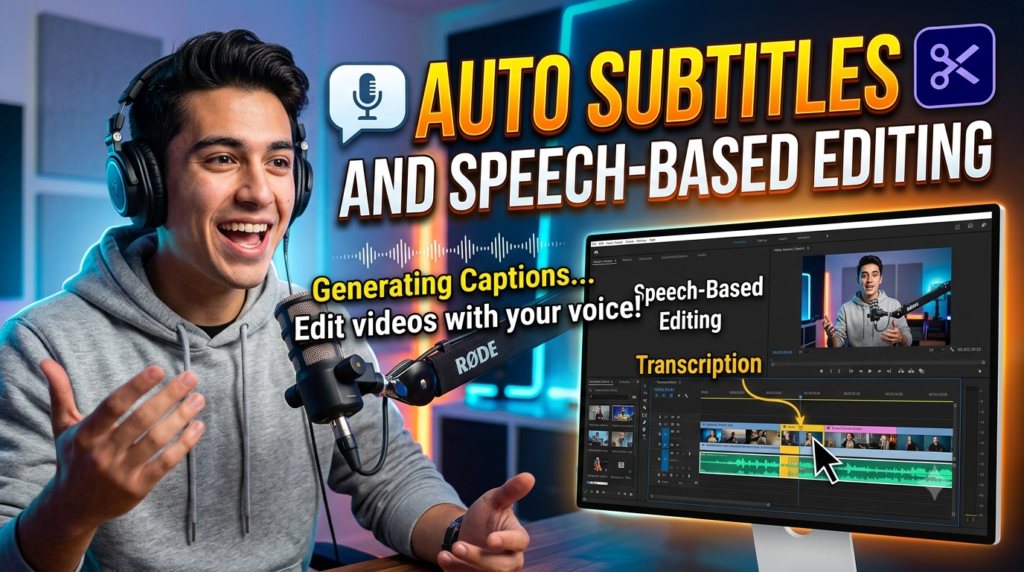
Automatic subtitles are increasingly important because captions serve both accessibility and content-discovery purposes. Movavi’s current AI subtitle feature uses speech recognition to generate captions automatically, after which users can edit the wording, timing, and styling. The company’s current product page also highlights more than 30 automatic subtitle styles, giving creators additional control over the appearance of captions.
For a social-media creator, this can significantly shorten the path from recording to publishing. Instead of listening to the entire video and manually typing every sentence, the editor creates a starting transcript automatically. You then review the generated text, correct names or unusual words, adjust timing when necessary, and choose a visual style that fits the content. The process resembles having a first-draft assistant: the software handles the repetitive first pass, while the creator remains responsible for accuracy and presentation. That distinction matters because speech recognition can occasionally misunderstand accents, background noise, technical terminology, or rapidly spoken dialogue.
Motion Tracking and Creative Effects
Motion tracking allows text, graphics, or effects to follow an object as it moves through a scene. Movavi describes its AI motion-tracking feature as a way to attach elements to moving subjects automatically, reducing the need for manual keyframe adjustments.
Think about a fitness video where you want to highlight a moving athlete, a product demonstration where a label needs to follow an object, or a travel video where you want to identify a moving vehicle. Without tracking, you may have to reposition the graphic repeatedly as the subject moves. With automated tracking, the software handles much of that repetitive positioning. This is another example of Movavi’s broader philosophy: let automation deal with predictable movement so the editor can spend more time deciding what the audience should actually see.
Transitions, Filters, Titles, and Overlays
Creative assets are an important part of Movavi’s appeal. The editor includes filters, transitions, titles, overlays, and other visual elements that can transform straightforward footage into something with more personality. The company describes hundreds of built-in creative options, while its broader effects ecosystem provides access to thousands of additional effects, stickers, transitions, titles, backgrounds, and other assets depending on the plan.
The key is moderation. Adding every transition and effect simply because it is available can make a video feel less professional rather than more professional. A clean cut may be better than a dramatic transition when the story moves quickly; a subtle title may communicate more effectively than animated text covering half the screen. Movavi gives you the creative ingredients, but good editing still depends on taste, timing, storytelling, and an understanding of your audience. The software can provide the paintbrushes, but the creator still decides what picture to paint.
Chroma Key and Background Effects
Chroma key is another useful feature for creators who want more control over backgrounds. Green-screen footage can be combined with another background to create presentations, educational videos, entertainment clips, or branded content. Movavi has long positioned chroma key alongside effects, titles, transitions, and other accessible creative tools.
The interesting part is how chroma key complements the newer AI background tools. Traditional chroma key works especially well when you can control the recording environment and use a suitable green or blue background. AI removal can be more convenient when you did not shoot against a dedicated backdrop. Having both approaches gives creators flexibility: use chroma key when you want predictable separation, and use AI-based removal when speed and convenience matter more.
Color Correction and Video Enhancement
Even great footage can benefit from basic color correction. A clip may look too dark, have a distracting color cast, or simply fail to match the footage recorded before or after it. Movavi includes tools for adjusting colors and improving video quality, while its current product pages emphasize one-click enhancement alongside more direct color controls.
Color correction should be viewed as storytelling rather than decoration. Warm tones can make a family video feel inviting, while cooler tones can produce a more restrained mood. Consistency is equally important: if one clip looks heavily saturated and the next looks flat, viewers may feel that something is wrong even if they cannot identify the technical reason. Movavi’s accessible adjustment tools make it easier for less experienced editors to bring footage into a more consistent visual range without needing to master a professional color-grading workflow.
One-Click Silence Removal and Faster Editing
One of the more practical additions in the current Movavi Video Editor is one-click silence removal. The feature is particularly relevant to talking-head videos, podcasts, tutorials, interviews, and educational recordings where pauses can accumulate throughout a long recording. Movavi lists silence removal among the newer and updated capabilities in its current editor.
This kind of automation may sound less exciting than an elaborate visual effect, but it can have a bigger impact on productivity. Imagine recording a 30-minute tutorial and repeatedly stopping to think, breathe, check notes, or collect your thoughts. Manually removing every unnecessary pause can become tedious. An automated workflow can identify silence and speed up the first editing pass, leaving you to review the result rather than performing every cut manually. Combined with automatic subtitles, noise reduction, and faster effect copying, these productivity features demonstrate where modern editing software is heading: less repetitive work, more time for creative judgment.
Movavi Screen Recorder
Movavi’s ecosystem extends beyond traditional video editing through Movavi Screen Recorder. It can capture a full screen or a selected area, record webcam footage, capture microphone and system audio, and display mouse clicks or keystrokes. The software also includes features such as screen annotation and scheduled recording.
That makes Screen Recorder particularly useful for tutorials, software demonstrations, online lessons, presentations, webinars, and training materials. A creator can record a process on the computer, explain it with voice narration, include a webcam overlay, and then move the footage into an editing workflow. For businesses and educators, this can simplify the creation of instructional content because the same ecosystem handles both capture and post-production. Instead of recording with one application, editing with another, and searching for separate annotation tools, users can keep much of the workflow under the Movavi umbrella.
Movavi Video Converter
Another major component is Movavi Video Converter, which focuses on changing media into formats suitable for different devices and workflows. Movavi describes the converter as a way to change and compress video, audio, and image files, while current product information also highlights AI-powered upscaling of footage by up to eight times.
This becomes useful when editing is only one part of the problem. Perhaps a camera produces a format that is inconvenient for another device, a file is too large to upload, or older footage needs enhancement before being included in a modern project. Conversion and compression can feel like background tasks, but they become important when dealing with large libraries of video. The ability to combine conversion, editing, and screen recording in a broader suite can therefore make Movavi attractive to users who want a complete content-production toolkit rather than a single-purpose editor.
Movavi Video Suite
Movavi Video Suite brings several of these functions together. Current Movavi materials describe it as an all-in-one package combining video editing, screen recording, and media conversion, with AI tools, effects, and a streamlined timeline.
The value proposition is straightforward: instead of buying separate applications and building a workflow around them, users get multiple related capabilities in one ecosystem. This can be especially convenient for people who regularly create different types of content. One day you might edit a YouTube video, the next you might record a software tutorial, and later you might need to convert a batch of clips for another device. Video Suite is designed for precisely that kind of varied workflow. It is less about one spectacular feature and more about reducing the number of separate tools required to complete everyday production tasks.
Movavi Effects and Creative Content
For creators who want a larger creative library, Movavi offers Movavi Effects as an additional content subscription. Current store information lists thousands of creative effects, stickers, transitions, titles, overlays, music tracks, and other assets, with the exact selection depending on the product and subscription.
This can be valuable when you publish frequently and want to avoid repeating the same visual language in every project. A large asset library can function like a wardrobe for your videos: the editor itself provides the basic clothing, while the effects collection gives you more options for changing the style. Still, having thousands of effects does not automatically make a video better. The strongest use of an effects library is selective—finding assets that support a video’s subject, brand, tone, or audience rather than filling empty space with decoration.
Movavi Pricing and Plans in the US
Pricing can change with promotions, region, product version, and billing period, so buyers should always verify the current checkout page before purchasing. As of the current August 2026 Movavi US-facing product pages, the company lists several options. One current purchase page shows Video Editor at $19.95 for a one-month subscription, while another current product page lists an annual Video Editor price of $54.95. Movavi also lists Video Editor Plus at a promotional price of $69.95 on its current purchase page, with the offer stated as valid through August 30, 2026.
| Product | Current listed price* | Best suited for |
| Video Editor | $19.95/month offer | Users wanting the editor on a short-term basis |
| Video Editor | $54.95 annual listing | Regular video editors |
| Video Editor Plus | $69.95 promotional listing | Editors wanting additional effects/content |
| Video Suite Plus | $99.95 promotional listing | Users wanting editing, conversion, and recording |
| Screen Recorder | $44.95 annual listing | Tutorials, webinars, demonstrations |
| Video Converter | $54.95 annual listing | Conversion, compression, and media preparation |
*Prices and promotions are based on current Movavi listings and can change.
One important consideration is the difference between an editor subscription and a broader suite. If all you need is basic video editing, buying a larger bundle may provide capabilities you rarely use. On the other hand, if you regularly record screens, convert files, and edit videos, the broader suite can make more sense. Movavi currently lists Video Suite pricing and bundles that combine Video Editor, Video Converter, Screen Recorder, and optional effects access.
Movavi for YouTube, TikTok, and Social Media
Movavi is well suited to creators who produce content for social platforms because its workflow supports short clips, captions, visual effects, overlays, speed changes, and vertical-video adaptations. Movavi specifically highlights social-media content among the use cases for its editor and describes tools for vertical video creation.
For YouTube, the editor can handle a broader workflow: organizing camera footage, removing mistakes, adding B-roll, placing titles, cleaning audio, creating captions, and exporting a finished episode. For TikTok, Instagram Reels, and similar formats, the focus often shifts toward speed, vertical framing, captions, punchy cuts, and attention-grabbing visual elements. The same underlying editor can serve both styles because the creative challenge is not necessarily the platform itself; it is how effectively the editor helps you communicate a message within the format your audience expects.
Movavi for Business, Education, and Tutorials
Movavi can also make sense outside traditional entertainment content. Businesses can use screen recordings for software training, product demonstrations, internal tutorials, onboarding materials, and presentations. Educators can combine screen capture, narration, webcam footage, captions, and editing to create lessons that are easier for students to follow. Movavi’s own product-selection materials specifically identify productivity and education workflows involving screen recording, video creation, media conversion, voiceover, and related functions.
This is where the combination of tools becomes particularly useful. A teacher can record a lesson, highlight important areas of the screen, add captions, remove distracting background noise, and edit the final video. A company can record a software demonstration, add branded titles, explain the workflow with voiceover, and export the finished tutorial. Instead of treating video editing as a specialized creative department, organizations can use accessible software to make useful visual communication part of everyday work.
Movavi Performance, Compatibility, and System Requirements
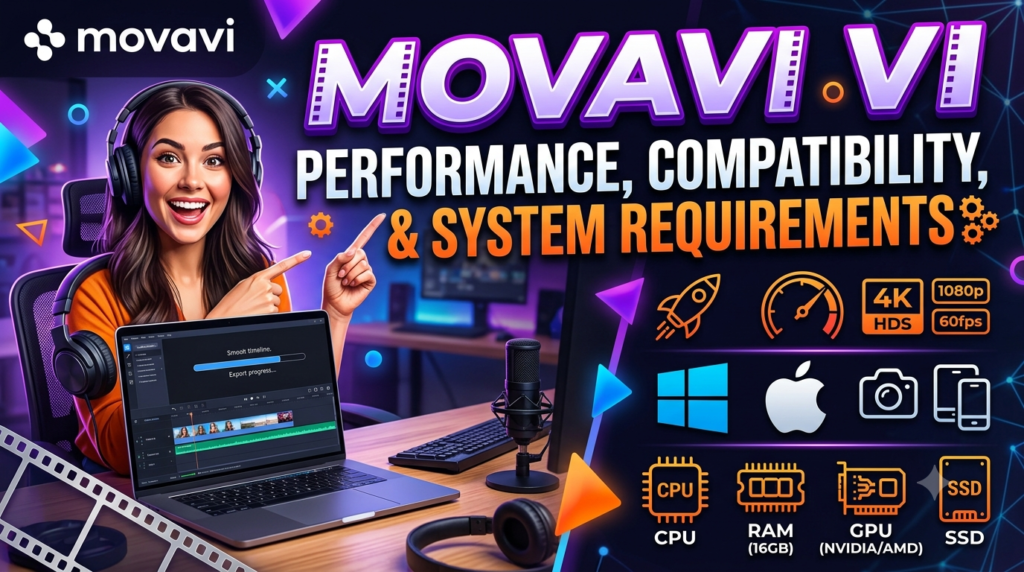
Movavi Video Editor 2026 is available for Windows and Mac, with system requirements depending on the operating system and current release. One current Movavi listing identifies version 26.20, updated July 20, 2026, and provides Mac requirements including macOS 12 or later, a 64-bit Intel processor or Apple M1 or higher, 4 GB RAM, and available storage for installation and operation.
Hardware still matters when editing video. Even a relatively simple editor has to process large media files, render effects, decode compressed footage, and produce a final export. Higher-resolution footage can increase the workload considerably. If you regularly work with 4K material, multiple layers, complex effects, or long recordings, a more capable processor, sufficient memory, fast storage, and compatible graphics hardware can improve the experience. Movavi promotes fast processing of 4K videos, but users should still compare their computer’s specifications with the current official requirements before committing to a workflow.
Read More:-
Parcel ABC UK Shipping Guide: Features, Pricing, and Benefits Explained
Why Fun-sport-vision.com DE Is Gaining Popularity in Germany
Mashvisor (US): Complete Review for Real Estate Investors in 2026
What Is Scandic SE? A Complete Beginner’s Guide
Simpel NL Explained: Everything You Need to Know
Pros and Cons of Movavi
The biggest advantage of Movavi is accessibility. The software offers a broad collection of editing and AI-assisted features without presenting itself as an intimidating professional workstation. The revamped timeline, automatic subtitles, AI noise reduction, motion tracking, background removal, creative effects, and one-click productivity tools all support a faster learning curve.
Another strength is the ecosystem. Users can combine editing with screen recording and media conversion, while optional effects subscriptions expand the creative library. This makes Movavi particularly attractive to creators who need to do many different content-production tasks. The main trade-off is that users who eventually require extremely specialized professional workflows may find themselves wanting deeper tools or more granular control than a beginner-oriented editor is designed to provide. There is also a pricing consideration: subscriptions, effects packages, and different product tiers can make the purchasing decision more complicated than simply buying one standalone application.
| Pros | Cons |
| Beginner-friendly workflow | Advanced professionals may want deeper specialized controls |
| AI-assisted editing tools | Some premium content requires additional plans |
| Automatic subtitles | AI output still needs human review |
| Motion tracking and background tools | Pricing and promotions can vary |
| Screen recording ecosystem | Larger suites may include tools some users do not need |
| Video conversion and editing options | High-resolution projects still require capable hardware |
| Large effects library | Too many effects can encourage over-editing |
Is Movavi Worth Using in 2026?
For many users, Movavi is worth considering in 2026, particularly if the priority is a practical combination of simplicity, creative flexibility, and AI-assisted productivity. The current Video Editor includes the fundamentals needed for everyday editing while adding automation for tasks such as subtitles, noise removal, motion tracking, background manipulation, and silence removal.
The right question, however, is not “Does Movavi have enough features?” It obviously has a large feature set. “Does Movavi have the features I actually need without making my workflow unnecessarily complicated?” is a better question to ask. The answer can easily be “yes” for a novice, YouTube creator, social media publisher, educator, small business, or casual filmmaker. If your work demands highly specialized professional post-production, extensive color workflows, complex compositing, or advanced collaborative production pipelines, it makes sense to compare Movavi with software built specifically around those requirements.
The current pricing also makes it sensible to evaluate the exact plan rather than purchasing impulsively. Movavi offers free downloads/trials for its products, while paid versions provide additional capabilities and remove restrictions associated with some free versions. The company currently states that free Video Editor builds can have limitations such as watermarks, export-length restrictions, or unavailable advanced features depending on the build. Trying the software with your own footage is therefore one of the best ways to determine whether its workflow suits you.



Conclusion
Movavi has evolved into more than a simple video editor. Its current ecosystem combines conventional editing tools with AI-powered automation, creative effects, screen recording, media conversion, and content libraries. The strongest part of the experience is the way these features are designed around speed: automatic subtitles reduce transcription work, noise removal helps clean imperfect recordings, motion tracking reduces repetitive positioning, background removal simplifies compositing, and silence removal can accelerate long-form editing.
For beginners, this accessibility can make video creation feel much less intimidating. For experienced casual editors, it can make repetitive tasks faster. And for businesses, educators, and creators who need to produce content regularly, the combination of editing, recording, and conversion tools can simplify the overall production pipeline. The most sensible approach is to start with the version that matches your actual workflow, test it with your own footage, and upgrade only when you genuinely need the additional capabilities.
Movavi’s biggest strength is not that it tries to replace every professional editing platform. Its strength is that it gives everyday creators a bridge between raw footage and polished content. In a world where video is increasingly used for marketing, education, entertainment, communication, and social media, that bridge can be surprisingly valuable.
FAQs
Q. Is Movavi Video Editor good for beginners?
A. Yes. Movavi is specifically designed around an accessible editing workflow, with straightforward timeline editing, ready-made effects, titles, transitions, and AI-assisted features. Its current product positioning emphasizes fast editing and a streamlined timeline, making it suitable for users who do not want to spend weeks learning a complicated professional interface.
Q. Does Movavi have AI video editing tools?
A. Yes. Current Movavi Video Editor features include AI-assisted background removal, noise reduction, motion tracking, and automatic subtitles. Movavi also highlights other automated functions such as silence removal in its current 2026 product information.
Q. Can Movavi edit 4K videos?
A. Yes. Movavi lists fast 4K video processing among the capabilities of its current Video Editor. Actual editing and rendering performance will still depend on the computer’s processor, graphics hardware, memory, storage, footage format, project complexity, and other factors.
Q. Does Movavi include screen recording?
A. Movavi offers Movavi Screen Recorder, which can record the full screen or a selected area and can capture webcam and microphone input. It also includes features such as annotations, mouse-click and keystroke highlighting, scheduled recording, and webcam overlays.
Q. Is Movavi free?
A. Movavi offers free downloads or trial versions, but the free version can include restrictions depending on the product and build. Movavi currently notes possible limitations such as watermarks, export-length restrictions, and unavailable advanced features. Paid plans provide broader functionality, and current pricing varies by product, billing period, promotion, and region.