
Switching between macOS and Windows used to feel like juggling two different worlds. One moment you’re deep into Apple’s sleek ecosystem, and the next you’re rebooting just to open a Windows-only app. Annoying, right? That’s exactly the problem Parallels set out to solve—and honestly, they nailed it.
With Parallels Desktop, you can run Windows on your Mac as if it were just another app. No restarts. No headaches. Just smooth, fast, and reliable virtualization that feels almost magical. Whether you’re a student, developer, business professional, or casual user, this tool has become a game-changer in how Macs handle Windows.
In this deep dive, we’ll explore everything you need to know about Parallels | Mac & Windows Virtualization, how it works, why it’s so popular, and whether it’s the right choice for you.
Table of Contents
- What Is Parallels Desktop?
- How Parallels Works on macOS
- Why Running Windows on Mac Matters
- Key Features of Parallels Desktop
- Parallels on Apple Silicon (M1, M2, M3 Macs)
- Performance: Is Parallels Fast Enough?
- Parallels vs Boot Camp
- Parallels vs Other Virtualization Tools
- Use Cases: Who Should Use Parallels?
- Security and Privacy in Parallels
- Ease of Setup and User Experience
- Licensing, Pricing, and Editions
- Pros and Cons of Using Parallels Desktop
- Tips to Get the Best Performance from Parallels
- Future of Mac & Windows Virtualization
- Conclusion
- FAQs
What Is Parallels Desktop?
At its core, Parallels Desktop is virtualization software that lets you run Windows, Linux, and other operating systems on macOS—side by side with your Mac apps.
Instead of forcing you to choose between macOS or Windows, it gives you both at the same time. Think of it like having two computers living peacefully inside one sleek MacBook.
The software is developed by Parallels, a well-known name in the virtualization space with years of experience tailoring solutions specifically for Mac users.
Understanding Virtualization in Simple Terms
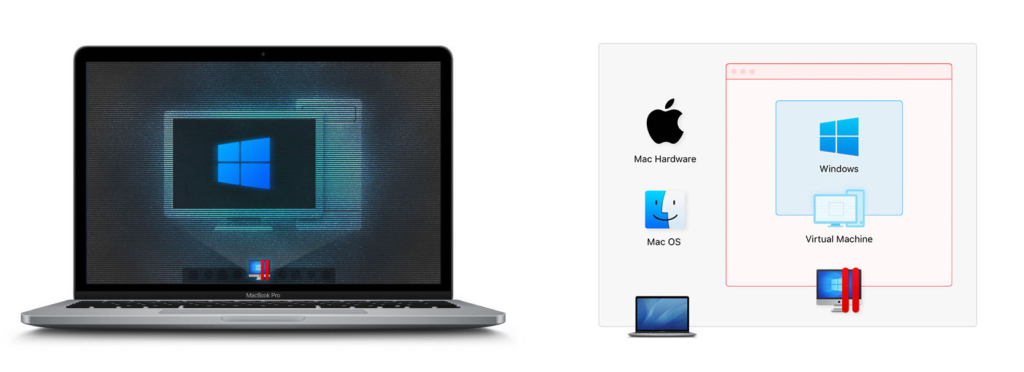
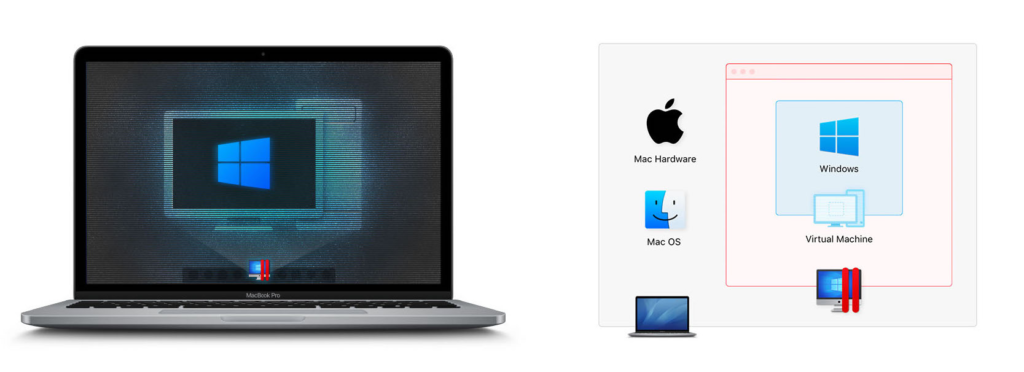
Virtualization is like creating a digital “room” inside your Mac where another operating system can live. That room behaves like a real computer—with its own memory, storage, and apps—but it’s all virtual.
The Vision Behind Parallels
Parallels wasn’t built just for tech experts. The goal has always been simple: make running Windows on Mac feel natural, fast, and effortless.
How Parallels Works on macOS
Virtual Machines Explained
Parallels creates a virtual machine (VM) that runs Windows within macOS. This VM uses your Mac’s hardware intelligently, sharing resources without slowing things down.
Integration with macOS
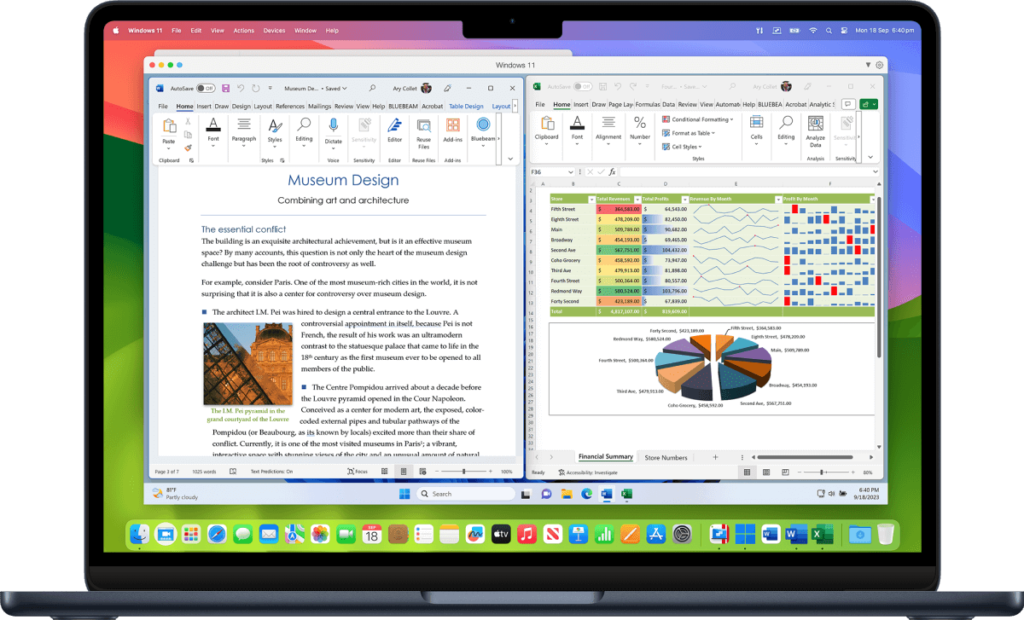
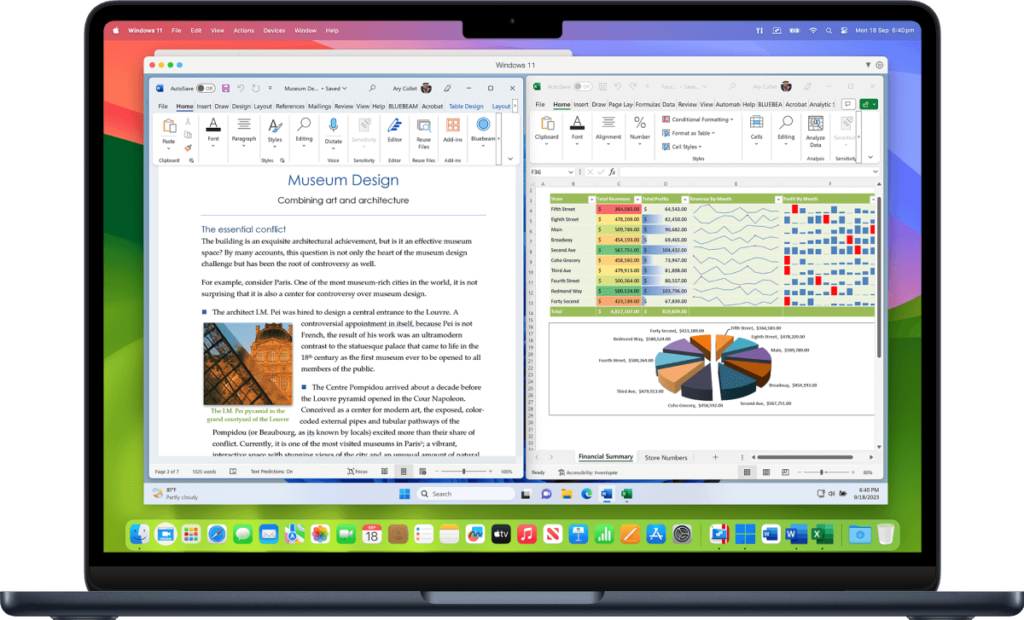
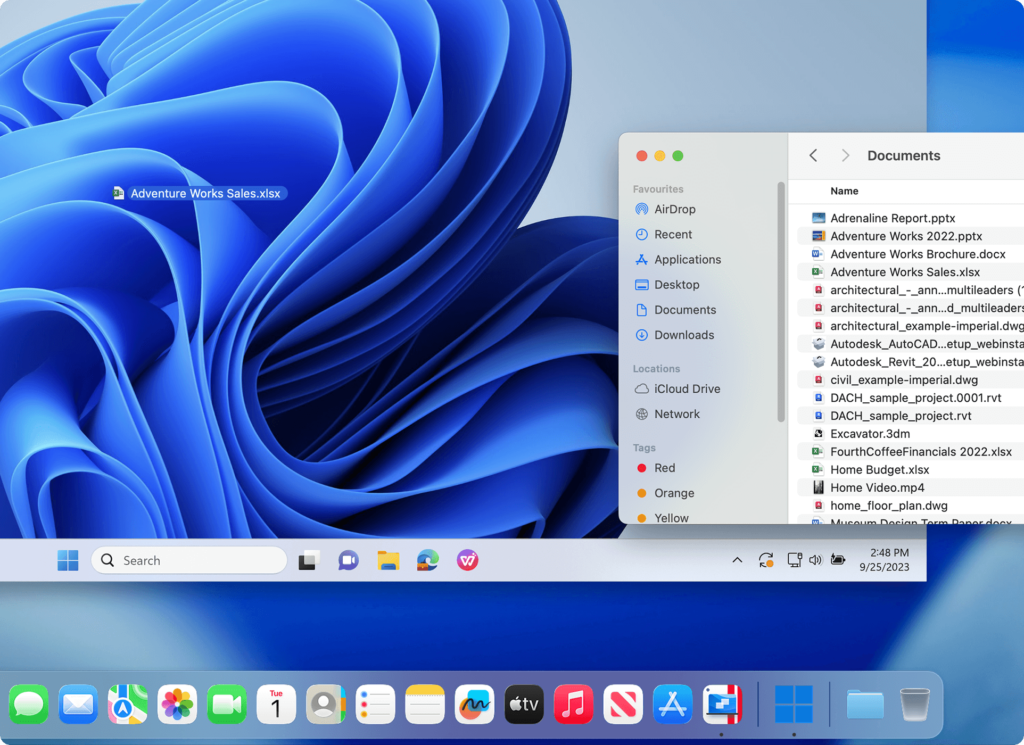
Here’s where things get impressive. Windows apps can appear right alongside macOS apps. You can copy text, drag files, and even use Mac gestures inside Windows apps. It’s less “virtual” and more “blended.”
Why Running Windows on Mac Matters
Software Compatibility Challenges
Some essential software—like certain accounting tools, engineering apps, or corporate systems—only runs on Windows. Parallels removes that limitation instantly.
Work, Study, and Gaming Needs
From Excel power users to students needing Windows-only exam software, and even light gamers, Parallels opens doors that macOS alone sometimes keeps closed.
Key Features of Parallels Desktop
Coherence Mode
This is the showstopper. Coherence Mode hides the Windows desktop entirely and lets Windows apps run like native Mac apps. It feels surreal—in a good way.
Performance Optimization
Parallels automatically adjusts CPU, RAM, and graphics to give you the best balance between speed and battery life.
Touch Bar and Retina Support
Windows apps look sharp on Retina displays, and Touch Bar shortcuts actually work. It’s the small details that count.
Drag-and-Drop File Sharing
Moving files between macOS and Windows is as easy as dragging them across. No cloud uploads. No USB drives.
Parallels on Apple Silicon (M1, M2, M3 Macs)
Apple’s shift to ARM-based chips changed everything—and Parallels adapted fast.
ARM-Based Virtualization
Parallels runs Windows 11 on ARM incredibly smoothly on Apple Silicon Macs, often outperforming older Intel-based setups.
Windows 11 on ARM Experience
Most modern Windows apps work flawlessly, and performance feels snappy, efficient, and surprisingly native.
Performance: Is Parallels Fast Enough?

Short answer: yes.
CPU and RAM Usage
Parallels lets you fine-tune how much power Windows gets. Whether you’re browsing or compiling code, it keeps things responsive.
Graphics and Gaming Performance
While it’s not meant for hardcore gaming, casual and mid-level games run well. For productivity? It’s excellent.
Read More:-
Why Trainual Is Essential for Scalable Business Growth
Postscript: The Ultimate SMS Marketing Tool for Ecommerce Brands
Malwarebytes | Cybersecurity for Everyone: Why It’s a Must-Have Security Tool in 2026
Parallels | Mac & Windows Virtualization: The Best of Both Operating Systems
Workable: The Ultimate Hiring Platform for Growing Companies
Parallels vs Boot Camp
Convenience vs Native Performance
Boot Camp requires restarting your Mac. Parallels doesn’t. While Boot Camp offers native performance, ParParallels | Mac & Windows Virtualization wins hands-down for convenience and multitasking.
Parallels vs Other Virtualization Tools
VMware Fusion
VMware is powerful but less polished on macOS. Parallels feels more “Mac-like.”
VirtualBox
Free, yes—but slower, less refined, and not ideal for Apple Silicon.
Use Cases: Who Should Use Parallels?
Developers
Test apps across platforms without juggling machines.
Business Professionals
Run Windows-only enterprise tools seamlessly.
Students
Access exam software, legacy apps, and learning tools easily.
Designers and Engineers
Use specialized Windows software without leaving macOS.
Security and Privacy in Parallels
Is Virtualization Safe?
Absolutely. Windows runs in an isolated environment, reducing risk to your macOS system.
Data Isolation
You control what’s shared between systems, keeping sensitive data secure.
Latest Post




Ease of Setup and User Experience
Installation Process
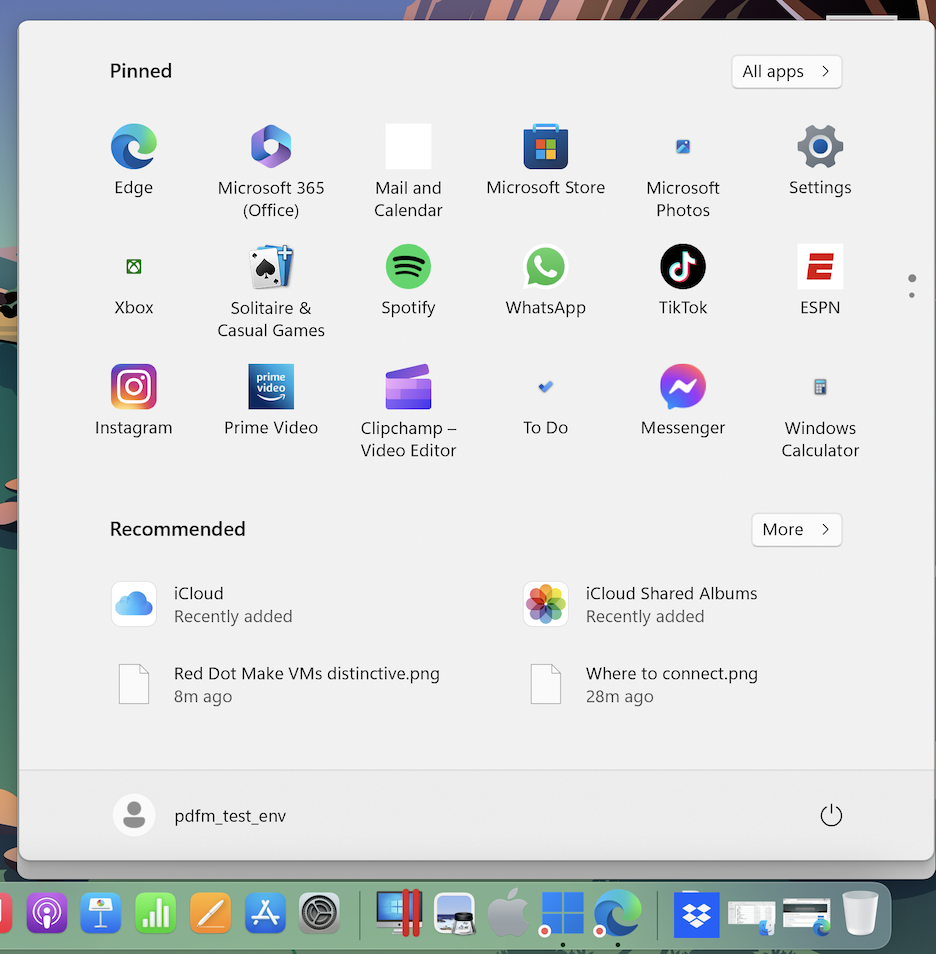
Install Parallels | Mac & Windows Virtualization, follow a few prompts, and Windows installs almost automatically.
Beginner-Friendly Interface
No technical expertise required. If you can install an app, you can use Parallels.
Licensing, Pricing, and Editions
Standard vs Pro vs Business
- Standard: Perfect for everyday users
- Pro: Advanced tools for developers
- Business: Enterprise-grade features and management
Pros and Cons of Using Parallels Desktop
Pros
- Seamless macOS integration
- Excellent performance
- Apple Silicon optimized
- User-friendly
Cons
- Paid software
- Not ideal for high-end gaming
Tips to Get the Best Performance from Parallels
Resource Allocation
Give Windows enough RAM—but not all of it. Balance is key.
Optimization Settings
Enable performance mode when plugged in, and battery-saving mode on the go.
Future of Mac & Windows Virtualization
As Apple Silicon evolves and Windows on ARM improves, virtualization will only get better. Parallels is clearly leading the charge.
Conclusion
If you want the freedom of Windows without giving up macOS, Parallels Desktop is the smartest choice available today. It’s fast, intuitive, and powerful—like having two worlds in perfect harmony. Whether for work, study, or curiosity, Parallels makes your Mac infinitely more versatile.
FAQs
Q. Can I run Windows 11 on Mac using Parallels?
A. Yes, Parallels fully supports Windows 11, including ARM versions on Apple Silicon Macs.
Q. Is Parallels better than Boot Camp?
A. For convenience and multitasking, yes. Boot Camp only offers native performance.
Q. Does Parallels slow down my Mac?
A. No, when configured properly, it runs efficiently without noticeable slowdowns.
Q. Can I use Parallels for free?
A. There’s a free trial, but full use requires a paid license.
Q. Is Parallels safe for sensitive work?
A. Yes, it offers strong isolation and security controls.