

Discover how Parallels | Mac & Windows Virtualization lets you run Windows and macOS side by side on a single device, offering seamless performance, productivity, and flexibility. This blog explores key features, benefits, use cases, and why Parallels is the smartest solution for users who want the best of both operating systems without compromise.
Table of Contents
- Introduction to Cross-Platform Computing
- What Is Parallels?
- How Parallels Virtualization Works
- Key Features of Parallels Desktop
- Mac and Windows Together: A Productivity Dream
- Parallels for Developers
- Parallels for Business and Enterprises
- Parallels for Students and Educators
- Gaming and Graphics Performance
- Parallels vs Dual Boot vs Other Virtual Machines
- Installation and Setup Guide
- Pros and Cons of Using Parallels
- Pricing and Plans
- Who Should Use Parallels?
- Future of Mac & Windows Virtualization
- Conclusion
- FAQs
Introduction to Cross-Platform Computing
Let’s be honest—choosing between Mac and Windows often feels like picking sides in a never-ending debate. Mac users love the sleek design and stability, while Windows fans swear by compatibility and flexibility. But what if you didn’t have to choose at all?
That’s exactly where Parallels steps in, acting like a bridge between two worlds that usually don’t get along.
Why Users Need Both Mac and Windows
Maybe you’re a designer who loves macOS but needs Windows-only accounting software. Or a developer testing apps across platforms. Or a student whose college software only runs on Windows. Sound familiar?
Using two separate machines is expensive and annoying. Virtualization solves that problem beautifully.
The Rise of Virtualization Technology
Virtualization has transformed how we use computers. Instead of being locked into one operating system, you can now run multiple OS environments on a single machine—smoothly, securely, and efficiently.
What Is Parallels?
Overview of Parallels
Parallels is a leading virtualization company best known for making it ridiculously easy to run Windows on a Mac. It removes the traditional barriers between operating systems and lets them work side by side like good neighbors.
Understanding Parallels Desktop
Parallels Desktop is the flagship product that allows macOS users to run Windows, Linux, and other operating systems simultaneously—without rebooting. Think of it as having two computers inside one laptop.
How Parallels Virtualization Works
Virtual Machines Explained
A virtual machine (VM) is a software-based computer running inside your actual computer. It has its own OS, apps, and settings, but shares hardware resources like CPU and RAM.
Host OS vs Guest OS
- Host OS: macOS (your main system)
- Guest OS: Windows or Linux running inside Parallels
Both run together without stepping on each other’s toes.
Seamless Integration Between macOS and Windows
This is where Parallels shines. You can open Windows apps right next to Mac apps, copy-paste across systems, and even share folders effortlessly.
Key Features of Parallels Desktop
Run Windows on Mac Without Reboot
No restarting. No waiting. Windows launches like any other Mac app.
Coherence Mode Explained
Coherence Mode hides the Windows desktop and lets Windows apps appear as native Mac apps. It’s like Windows learned macOS manners overnight.
Performance Optimization
Parallels dynamically allocates system resources, ensuring both operating systems run smoothly—even during heavy workloads.
Apple Silicon Support
Parallels is fully optimized for Apple Silicon (M1, M2, M3), delivering impressive speed and efficiency with ARM-based Windows.
Mac and Windows Together: A Productivity Dream
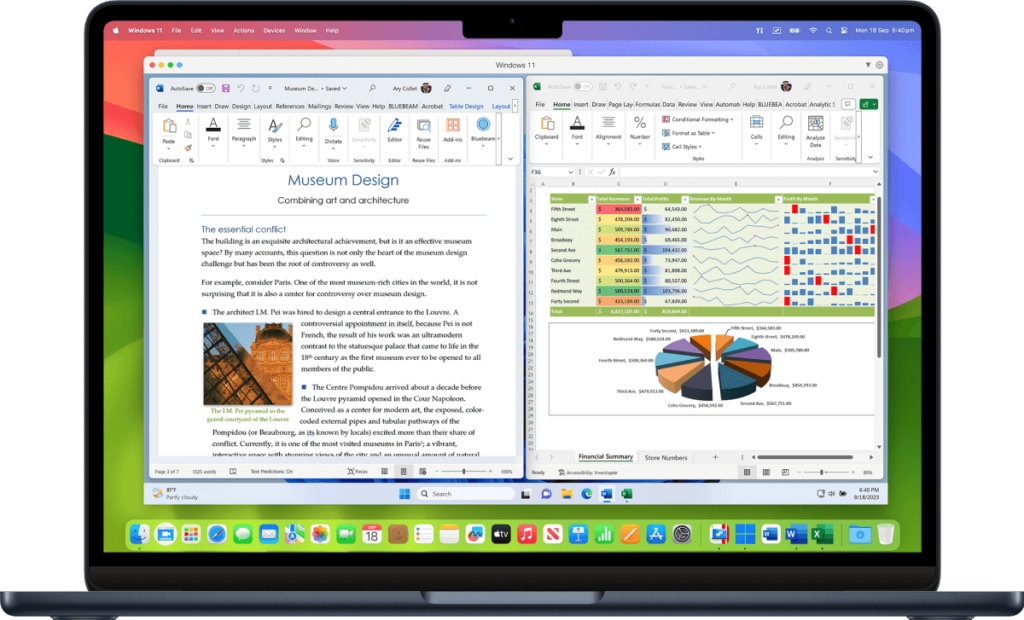
Switching Between macOS and Windows Apps
You can jump between Final Cut Pro and Excel without missing a beat. It feels natural, fast, and intuitive.
Shared Files, Clipboard, and Drag-and-Drop
Drag files between systems, copy text across apps, and work as if both OS were one unified platform.
Parallels for Developers
Testing Across Multiple Operating Systems
Developers can test apps on Windows, Linux, and macOS simultaneously—perfect for cross-platform development.
Support for Linux and Other OS
Ubuntu, Fedora, Debian—you name it. Parallels supports a wide range of operating systems.
DevOps and Virtual Labs
Spin up virtual environments for testing, automation, and experimentation without touching your main system.
Latest Post




Parallels for Business and Enterprises
Remote Work and BYOD
Employees can securely run corporate Windows apps on personal Macs—ideal for hybrid and remote teams.
Enterprise Security Features
Encryption, access control, and centralized management make Parallels enterprise-ready.
Parallels for Students and Educators
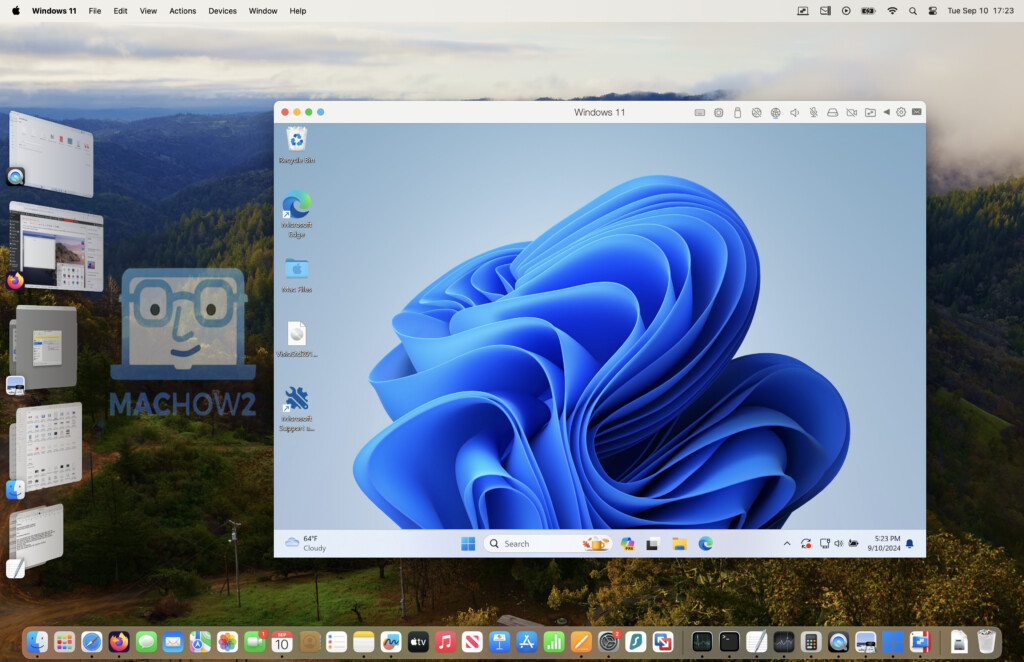
Access to Windows-Only Software
Engineering tools, accounting software, and exam applications often require Windows. Parallels solves that instantly.
Affordable Licensing for Education
Students and teachers get discounted plans, making it budget-friendly.
Gaming and Graphics Performance
Can You Play Windows Games on Mac?
Yes—many Windows games run smoothly through Parallels, especially casual and mid-range titles.
DirectX and Graphics Acceleration
With DirectX support and GPU acceleration, Parallels delivers surprisingly good graphics performance.
Read More:-
Workable: The Ultimate Hiring Platform for Growing Companies
How Wise – Commission Payout Currency USD Simplifies International Payments
Unbounce: How High-Converting Landing Pages Drive More Leads in 2026
AirAsia Travel Platform: Features, Benefits, and Services
How Wrike Improves Project Management for Marketing Teams
Parallels vs Dual Boot vs Other Virtual Machines
Parallels vs Boot Camp
Boot Camp forces you to reboot. Parallels lets you multitask. Enough said.
Parallels vs VirtualBox
VirtualBox is free but lacks performance, polish, and Apple Silicon optimization.
Parallels vs VMware Fusion
VMware is powerful, but Parallels wins in user experience and Mac integration.
Installation and Setup Guide
System Requirements
- macOS (latest versions supported)
- Minimum 8GB RAM recommended
- Apple Silicon or Intel-based Mac
Step-by-Step Installation Process
- Download Parallels Desktop
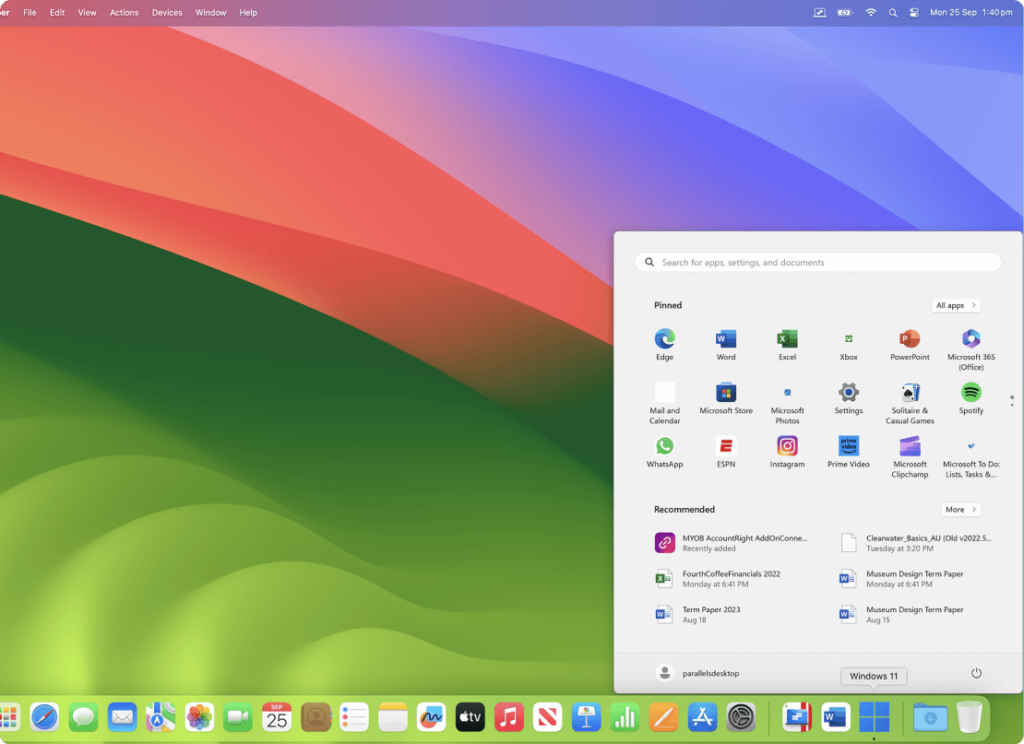
- Install and launch
- Choose Windows or another OS
- Follow on-screen setup
- Start working instantly
Pros and Cons of Using Parallels
Advantages
- No reboot required
- Excellent performance
- Deep macOS integration
- Apple Silicon optimized
Limitations
- Paid software
- Not ideal for high-end AAA gaming
Pricing and Plans
Standard, Pro, and Business Editions
- Standard: Home users
- Pro: Developers and power users
- Business: Teams and enterprises
Subscription vs One-Time Cost
Parallels now follows a subscription model with regular updates and improvements.
Who Should Use Parallels?
Freelancers and Creators
Design, edit, invoice—no platform restrictions.
Developers and IT Professionals
Test, deploy, and experiment freely.
Businesses and Enterprises
Secure, scalable, and efficient cross-platform workflows.
Future of Mac & Windows Virtualization
Apple Silicon and ARM-Based Windows
ARM-based Windows is evolving fast, and Parallels is leading the charge.
Cloud and Hybrid Virtualization
Expect tighter integration with cloud services and remote environments.
Conclusion
Parallels is more than just virtualization software—it’s freedom. Freedom to use the best features of macOS and Windows without compromise. Whether you’re a student, developer, business owner, or creative professional, Parallels delivers the best of both operating systems in one seamless experience. Why choose sides when you can have it all?
FAQs
Q. Can I run Windows 11 on Mac using Parallels?
A. Yes, Parallels fully supports Windows 11, including ARM versions for Apple Silicon Macs.
Q. Does Parallels slow down my Mac?
A. No, when configured properly, Parallels runs efficiently with minimal performance impact.
Q. Is Parallels better than Boot Camp?
A. For most users, yes. Parallels offers more flexibility, multitasking, and convenience.
Q. Can I use Parallels offline?
A. Absolutely. Once installed, virtual machines work without an internet connection.
Q. Is Parallels safe to use for business data?
A. Yes, Parallels includes enterprise-grade security and encryption features.